Best GTA 6 Audio Settings: 3D Headphones, Dialogue & Midnight Setup
Table of contents
Gunfire echoing across Vice-Dale, roaring engines, and blasting car stereos can easily drown out crucial story conversations in Grand Theft Auto VI. Finding the best GTA 6 audio settings takes a specific mix of in-game volume ratios and system-level console adjustments rather than a single preset switch. Here is how to configure spatial 3D headphones, clear character voices, and quiet late-night sound on your console.
Best GTA 6 Audio Settings & How the Retail Menu Works
Grand Theft Auto VI launched worldwide on 19 November 2026 for PlayStation 5, PlayStation 5 Pro, Xbox Series X, and Xbox Series S, alongside Xbox One access via Xbox Cloud Gaming (with no PC version at launch). To adjust your sound, open Pause Menu > Settings > Audio, which sits as the seventh tab using L1/R1 on PlayStation or LB/RB on Xbox, right before the Account tab. Rockstar Games organises this menu into Setup, Volume, and Narration sections, with Restore Default and Restore All options at the bottom.
Despite pre-launch rumours claiming percentage bars and studio presets, the retail build contains no built-in Midnight Mode, Dynamic Range, Dialogue Boost, or 3D Audio switches inside the game menu. Instead, all six GTA 6 volume sliders—Master Volume, SFX, UI, Dialogue, Music, and Media—use a 0 to 10 integer scale and start maxed out at 10 on a fresh install. Because nothing can be pushed past 10, balancing the mix means pulling competing channels down to create headroom for voices, then pairing those numbers with your console or television settings.
| Setting / Toggle | Factory Default | Balanced 3D Headset | Clear Dialogue Boost | Late-Night Midnight Mode |
|---|---|---|---|---|
| Master Volume | 10 | 10 |
PlayStation 5 & PlayStation 5 Pro Setup
Grand Theft Auto VI natively supports Sony's Tempest 3D AudioTech for directional awareness. Because the console does not support standard Bluetooth audio headsets directly, connect your headphones using a 2.4GHz USB wireless dongle or a 3.5mm analogue cable plugged into your DualSense wireless controller, then follow these steps:
- Open console Settings > Sound > Audio Output and verify that Output to Headphones is set to All Audio rather than voice chat only.
- Navigate to Settings > Sound > 3D Audio (Headphones) and switch Enable 3D Audio for Headphones to On.
- Select Create Personalized 3D Audio Profile and toggle Apply Personalized 3D Audio Profile, or pick the closest match from the five ear-level presets under Adjust 3D Audio Profile.
If you prefer playing without a headset, you can also enable 3D Audio for TV Speakers under Settings > Sound > 3D Audio (TV Speakers), which calibrates room acoustics from your seating position using the microphone built into your controller.
Xbox Series X|S Spatial Audio Setup
Configuring GTA 6 Xbox spatial audio takes less than a minute in the dashboard menu. Open Settings > General > Volume & audio output > Headset audio > Headset format and pick one of three spatial options:
- Windows Sonic for Headphones: Included free out of the box on every Xbox console.
- Dolby Atmos for Headphones: Requires downloading the Dolby Access app and purchasing a paid headphone licence.
- DTS Headphone:X: Requires installing the DTS Sound Unbound app and holding an active licence.
Real Headsets vs In-Game Wearable Earbuds
Do not confuse console spatial audio with Jason and Lucia's wearable in-game headphones. For the first time in the series, both protagonists can buy earbuds or headphones starting at $100 and up from Electronics shops (listed on the map under Index > Style > Electronics). Once bought, hold L1/LB, tap R1/RB to reach the Items tab, and equip them in the Headgear slot so you can hold D-Pad Left to play radio stations and on-demand podcasts while walking around on foot.
Dialogue Boost Setup: Hearing Voices Over Shootouts & Car Radios
Upgrade your console setup for GTA
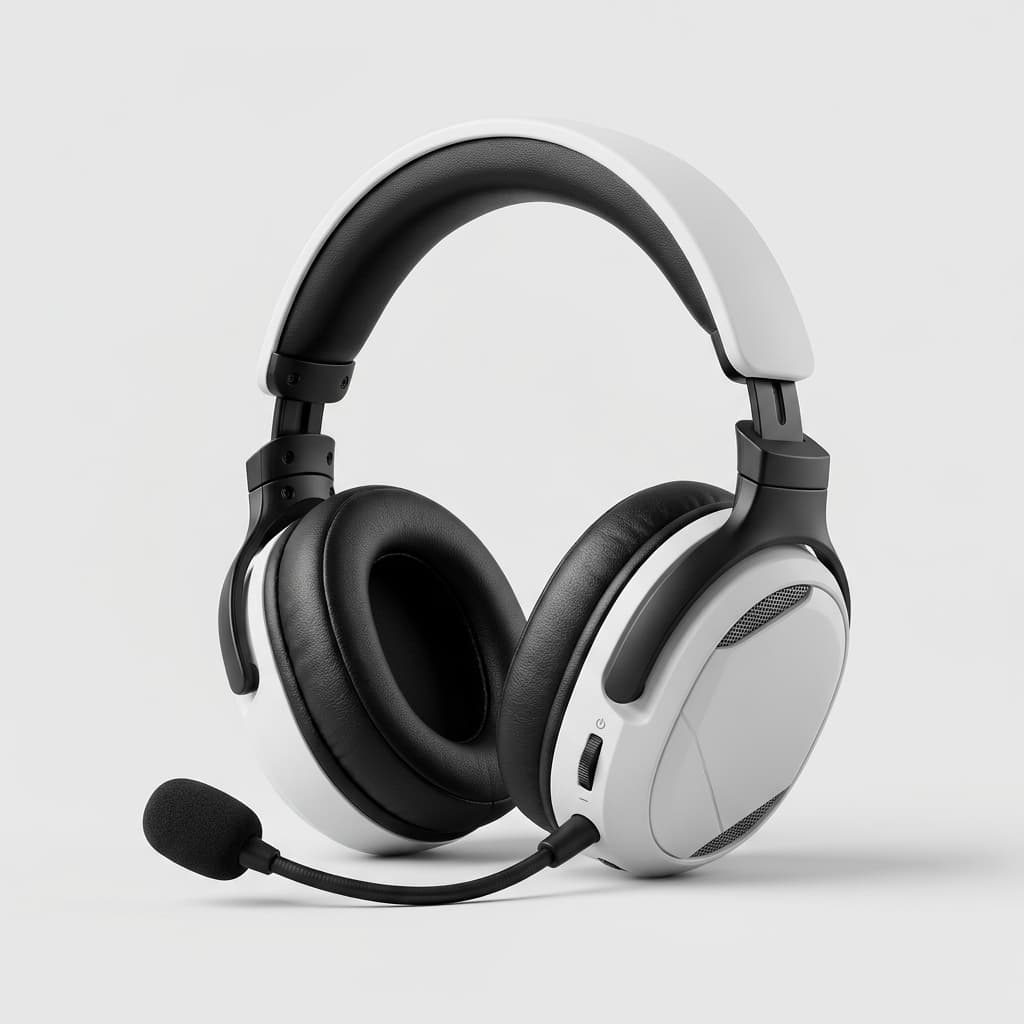
Check current prices on controllers, 3D wireless headsets, and fast NVMe SSD storage on Amazon.

As an Amazon Associate we earn from qualifying purchases.
Best GTA 6 Audio Settings for Midnight Mode & Late-Night Play
Building a custom GTA 6 midnight mode means capping sudden volume spikes inside the game before compressing peaks on your sound system. Start inside Pause Menu > Settings > Audio with these quiet-play adjustments:
- Keep Dialogue at 10 while dropping SFX, Music, and Media to 6 or 7.
- Switch Tinnitus Reduction to On (default Off) to strip out the piercing high-pitched ear ringing triggered by nearby explosions.
- Set Vehicle Radio to Off (default is Default, which resumes playing whenever the previous driver had the stereo on) so hijacking a car at 1 a.m. does not trigger a sudden bass spike; you can still turn stations on manually anytime by holding D-Pad Left.
- Set Controller Speaker to Off and leave Controller Cop Scanner set to Off when playing on a television, preventing sudden DualSense phone calls, GPS prompts, and police chatter from projecting into a quiet room.
Wearing wired or 2.4GHz wireless headphones remains the easiest way to keep late-night sessions contained. On PlayStation 5, returning to the Audio Focus menu and selecting Boost Quiet Sounds (at Weak, Medium, or Strong) lifts subtle footsteps and ambient details so your master headphone volume can stay comfortably low.
If you are playing through external speakers, turn on the built-in Night Mode (dynamic range compression) on your television, soundbar, or AV receiver to clamp down on loud explosions. Xbox Series X and Xbox Series S players should watch out for two common traps: the Xbox dashboard's "Night Mode" only dims screen blue light and console or controller LEDs rather than compressing sound, and many AV receivers require switching Xbox HDMI audio from 5.1/7.1 uncompressed PCM to Bitstream out (using Dolby Digital or the free Home Theater setup in Dolby Access) before the receiver's Dolby Night Mode will unlock.
Extra Audio Toggles: GPS Voice, Controller Speaker & Screen Narration
Beyond volume mixing, Rockstar's Audio tab holds a few quality-of-life and accessibility controls worth checking before you cruise across Leonida:
- GPS Voice: Defaults to Off and offers four options that enable spoken turn-by-turn navigation prompts or tones while driving, letting you keep your eyes off the radar during fast pursuits.
Fixing GTA 6 3D Audio Crackling, Cutouts & Lip-Sync Delays
During launch week in November 2026, players across PlayStation 5, PlayStation 5 Pro, and Xbox Series X|S reported intermittent headset static, choppy audio dropouts in dense crowds, and cutscene lip-sync delays of roughly half a second. Until Rockstar deploys a patch, a quick GTA 6 audio crackling fix usually comes down to resetting your spatial stream.
On PlayStation 5 and PlayStation 5 Pro, try these steps in order:
- Go to Settings > Sound > 3D Audio (Headphones), temporarily switch Enable 3D Audio for Headphones to Off so the console reverts to standard stereo, and restart Grand Theft Auto VI.
- Check for DualSense wireless controller firmware updates under Settings > Accessories > Controller (General) if your headset is plugged into the 3.5mm jack.
- Unplug and reconnect any 2.4GHz USB wireless headset adapters directly into the console.
On Xbox Series X and Xbox Series S, work through these fixes:
- Open Settings > General > Volume & audio output and set Headset format (plus HDMI audio if using speakers) to Stereo uncompressed.
- Highlight Grand Theft Auto VI on the dashboard, open Manage game and add-ons > Quick Resume settings, and disable Quick Resume, as suspending the game often triggers audio desyncs.
- Connect your Xbox controller directly to the console with a USB-C cable if wireless headset audio keeps cutting out.
FAQ
Does GTA 6 have a Midnight Mode or Dynamic Range setting in the menu?
No. Despite pre-release speculation, the retail version of Grand Theft Auto VI has no Midnight Mode, Night Mode, or Dynamic Range switch inside Pause Menu > Settings > Audio. To play quietly, lower SFX, Music, and Media to 6 or 7, turn Tinnitus Reduction On, set Vehicle Radio and Controller Speaker to Off, and enable Night Mode on your television or AV receiver.
How do you boost dialogue volume in GTA 6 when Dialogue is already at 10?
Every volume slider starts at 10 out of 10 by default, so you must create headroom by dropping SFX, Music, and Media to 7 or 8 while leaving Dialogue at 10. PlayStation 5 headset users can also switch on the console's Boost Voices feature under Settings > Sound > Volume > Audio Focus.