Best GTA 6 Graphics Settings for PS5, PS5 Pro, and Xbox Series X
Table of contents
Grand Theft Auto VI pushes current-generation console hardware hard enough that Rockstar Games removed traditional visual presets entirely. Because you cannot simply flip a performance switch on PlayStation 5, PlayStation 5 Pro, or Xbox Series X, dialling in the best GTA 6 graphics settings requires tuning motion sliders, HDR tone-mapping, and console-level video outputs together. Here is how to configure your console and television for clean image clarity, responsive controls, and accurate Vice City lighting.
Why GTA 6 Has No Fidelity or Performance Mode Toggles
If you went looking for a GTA 6 60 FPS performance mode after the game launched on November 19, 2026, you are not missing a hidden menu. Grand Theft Auto VI offers no selectable Quality, Performance, or 40 FPS Balanced presets on any console, nor can you manually toggle ray tracing or rendering resolution.
Rockstar Games locked PlayStation 5, PlayStation 5 Pro, and Xbox Series X to a single 30 FPS presentation because of the heavy CPU and GPU demands created by dense AI routines, world simulation, and real-time lighting. All three consoles render internally at a fixed 2560x1440 (1440p) resolution without dynamic resolution scaling, paired with a native 4K user interface. (For comparison, Xbox Series S renders internally at 720p and upscales to 1080p using AMD FSR 4.)
Where the three 4K consoles separate is in upscaling quality, shadow rendering, and frame-rate headroom. Base PlayStation 5 and Xbox Series X permanently run real-time ray-traced global illumination (RTGI) and ray-traced reflections, relying on Rockstar's in-house temporal anti-aliasing (TAA) with spatial upscaling to reach 4K. PlayStation 5 Pro automatically adds ray-traced shadows and reconstructs its 1440p base using Sony's AI-driven second-generation PSSR (PSSR2)—referred to simply as PSSR by Digital Foundry and PSSR2 in Rockstar's technical statements—producing a noticeably sharper, near-native 4K image.
| Feature | PlayStation 5 | PlayStation 5 Pro | Xbox Series X |
|---|
Best GTA 6 Graphics Settings on PS5 and PS5 Pro System Menus
Before relying on your in-game sliders, verify your PlayStation system configuration so the console sends a clean signal. Good GTA 6 PS5 Pro settings and base PlayStation 5 settings are identical in Sony's Screen and Video menu, since PSSR2 upscaling and ray-traced shadows engage automatically on the Pro hardware.
Configure your PlayStation 5 or PlayStation 5 Pro video output using these steps:
- Set Resolution to Automatic (or 2160p on a 4K display) so the native 4K HUD and upscaled image output cleanly.
- Set ALLM (Auto Low Latency Mode) to Automatic so compatible displays switch into Game Mode as soon as Grand Theft Auto VI launches.
- Set HDR to On When Supported—avoid advice in some online guides recommending Always On, which contradicts Sony's official documentation and forces SDR content or non-HDR monitors into a broken tone-mapped container.
- Enable HGiG on your television first, then run Sony's system-level Adjust HDR calibration wizard before fine-tuning the sliders inside the game.
Keep expectations realistic regarding Variable Refresh Rate on Sony's consoles. PlayStation's system-level VRR only operates above 48 FPS and lacks Low Frame-Rate Compensation (LFC), while Grand Theft Auto VI does not use a 120 Hz output container on PlayStation—meaning VRR and 120 Hz will not engage to smooth out sub-30 FPS combat dips on either PlayStation 5 or PlayStation 5 Pro.
Upgrade your console setup for GTA
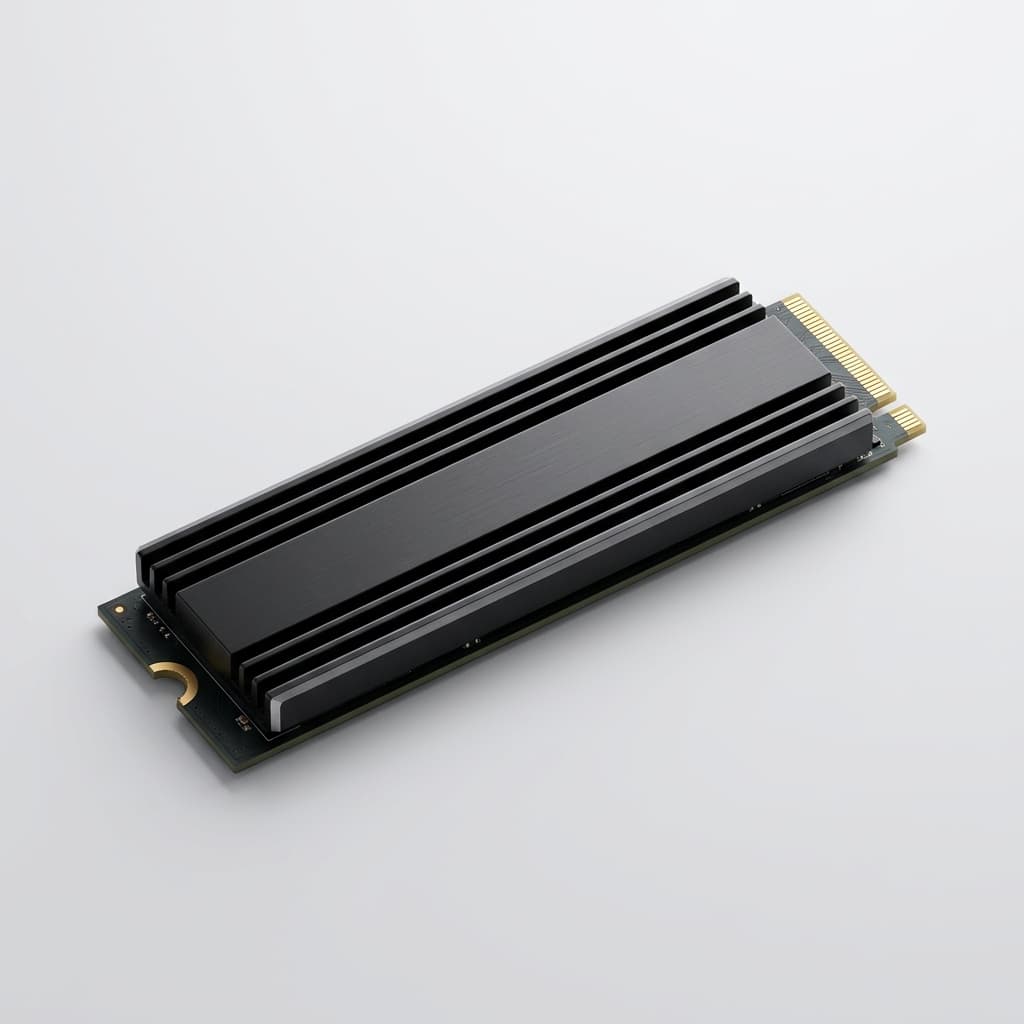
Check current prices on controllers, 3D wireless headsets, and fast NVMe SSD storage on Amazon.

As an Amazon Associate we earn from qualifying purchases.
Optimal Xbox Series X Video Settings and VRR Advantage
While base PlayStation 5 and Xbox Series X share the same internal 1440p TAA pipeline, dialling in the right GTA 6 Xbox Series X settings unlocks a meaningful smoothness advantage on HDMI 2.1 screens. Microsoft's console handles low-frame-rate refresh matching at the system level, helping mask brief performance drops during heavy Vice City chaos.
Open your Xbox Series X TV & display options and work through this checklist:
- Open 4K TV Details first to confirm green ticks across your HDMI 2.1 connection using the included Ultra High Speed HDMI cable.
- Under Video Modes, tick Allow auto low latency mode (ALLM) to minimise controller input delay.
- Set Resolution to 4K UHD and Refresh Rate to 120 Hz with VRR enabled on supported displays; Digital Foundry confirmed that Xbox Series X system-level VRR and LFC actively smooth out minor frame-rate dips into the 20s.
- Tick Allow HDR10 and complete the Xbox Calibrate HDR for Games app prior to adjusting in-game HDR sliders—or enable Dolby Vision for Gaming if your television supports it, as Grand Theft Auto VI supports Dolby Vision natively at launch.
Watch out for one early quirk reported by Xbox Series X players. Leaving Grand Theft Auto VI suspended in Quick Resume can trigger a streaming bug where resuming your session loads blurry, low-resolution world textures; if the city suddenly looks muddy, fully quit and restart the game from the dashboard to restore normal asset quality.
Essential TV Picture Settings for a 30 FPS Presentation
Your television's internal processing has a massive impact on how responsive and sharp a 30 FPS open-world game feels. Even well-tuned console outputs can be undermined by factory picture presets designed for showroom floors rather than interactive gameplay.
Apply these GTA 6 TV picture settings on your display before starting a long session:
- Confirm Game Mode is active (either automatically via ALLM or manually through your picture preset menu) to keep input latency as low as possible at 30 FPS.
- Open your television's HDR tone-mapping menu, enable HGiG, and turn Dynamic Tone Mapping off before running console and in-game calibration so your screen does not double tone-map and blow out bright Vice City highlights.
- Turn off all television frame interpolation and motion smoothing—labelled TruMotion on LG, Picture Clarity or Motion Plus on Samsung, Motionflow on Sony, Motion Clarity on TCL, and Motion Enhancement on Hisense—because interpolating a 30 FPS feed introduces severe input lag and shimmering artefacts around moving cars.
- Leave TV Sharpness at its neutral or 0 baseline so artificial edge halos do not exaggerate the 1440p upscaling, and select the Warm, Warm 2, or Warm 50 colour temperature preset for accurate white balance.
FAQ
Does GTA 6 have a 60 FPS Performance Mode on PS5 Pro or Xbox Series X?
No. Rockstar Games locked Grand Theft Auto VI to a single 30 FPS presentation across PlayStation 5, PlayStation 5 Pro, and Xbox Series X, with no selectable Quality, 60 FPS Performance, or 40 FPS Balanced modes.
Does VRR work in GTA 6 on PS5, PS5 Pro, and Xbox Series X?
VRR helps on Xbox Series X when paired with a 120 Hz VRR display, using system-level Low Frame-Rate Compensation (LFC) to smooth out minor frame drops into the 20s. On PlayStation 5 and PlayStation 5 Pro, VRR does not engage because PlayStation's VRR requires at least 48 FPS, lacks LFC, and the game does not use a 120 Hz output container on PlayStation.