GTA 6 Blurry Graphics, Motion Blur & HDR Fix (PS5 & Xbox)
Table of contents
Stepping into Vice City should be a visual showcase, yet many PlayStation 5, Xbox Series X, and Xbox Series S players have booted up Grand Theft Auto VI only to find GTA 6 blurry graphics, heavy camera smearing, and flat, grey highlights. Between spatial upscaling limits, a launch-week post-processing glitch, and broken tone-mapping math, the factory defaults do your television no favours. Below, you will find the exact console, television, and in-game adjustments needed to sharpen image clarity and restore proper contrast on your specific panel.
Why You See GTA 6 Blurry Graphics on Base PS5, Xbox & Cloud Gaming
Grand Theft Auto VI launched worldwide on November 19, 2026, targeting a locked 30 FPS across every supported console with no Graphics or Performance mode toggle in the menus. If the picture looks softer than you expected on a 4K television, the underlying rendering pipeline explains why.
According to Digital Foundry testing and Rockstar Games engineering statements, the base PlayStation 5, PlayStation 5 Pro, and Xbox Series X all render internally at a fixed 2560x1440 (1440p) without obvious dynamic resolution scaling. However, the base PlayStation 5 and Xbox Series X stretch that 1440p image to 4K using a basic spatial upscale paired with temporal anti-aliasing (TAA) rather than a modern temporal reconstruction pass, producing a noticeably softer presentation than the PlayStation 5 Pro.
| Platform | Internal Resolution | Upscaling Method | Target Output & Frame Rate | Visual Notes |
|---|---|---|---|---|
| PlayStation 5 Pro | 2560x1440 | PlayStation Spectral Super Resolution (PSSR) | Near-native 4K at 30 FPS |
Quick Fix for GTA 6 Blurry Graphics & the Stuck Depth-of-Field Bug
Before tuning sliders, rule out the intermittent GTA 6 depth of field bug reported across PlayStation 5, PlayStation 5 Pro, and Xbox Series X|S since launch day. This glitch causes heavy distance fuzziness, haze across the upper screen, or a focal blur that refuses to clear during gameplay, and it frequently triggers right after toggling HDR settings in the menu.
Use these steps in order to clear the stuck post-processing pass:
- Restart the game or console: Press the console home button, fully close Grand Theft Auto VI from the dashboard, and relaunch it—or reboot the console entirely—to flush the broken blur state.
- Widen your camera distance: If your character stays out of focus, switch away from the closest camera preset (Option 1) to a wider camera view, which forces the depth-of-field focal plane to reset.
As of November 21, 2026, Rockstar Games has not issued an official statement or patch addressing either this lingering blur glitch or the in-game HDR tone-mapping bug. Avoid flipping HDR on and off repeatedly mid-session so you do not re-trigger the haze.
Best Motion Blur, Camera & Visual Effect Settings for Clarity
Dialing in the GTA 6 best display settings requires balancing sharpness against 30 FPS frame pacing, where each frame stays on screen for roughly 33.3 milliseconds. Head to Pause > Settings > Display to find the GTA 6 motion blur settings under Visual Effects, where Motion Blur Strength sits on a 0–10 slider set to 3 by default.
Your display technology determines where that slider belongs:
- LCD TVs and gaming monitors (set Motion Blur Strength to 0 or 1): Because LCD pixels have slower natural response times, setting the slider to 0 or 1 maximises image sharpness during pans and prevents double-blurring.
- OLED TVs (set Motion Blur Strength to 1–3, or 5–7 for comfort): When tuning GTA 6 OLED motion blur, dropping the slider to 0 on near-instantaneous OLED pixels exposes harsh sample-and-hold stutter during camera turns. Keeping it at 1–3 preserves fine detail while softening frame transitions, whereas 5–7 masks choppiness further if you are sensitive to judder (at the cost of smearing distant scenery).
Upgrade your console setup for GTA
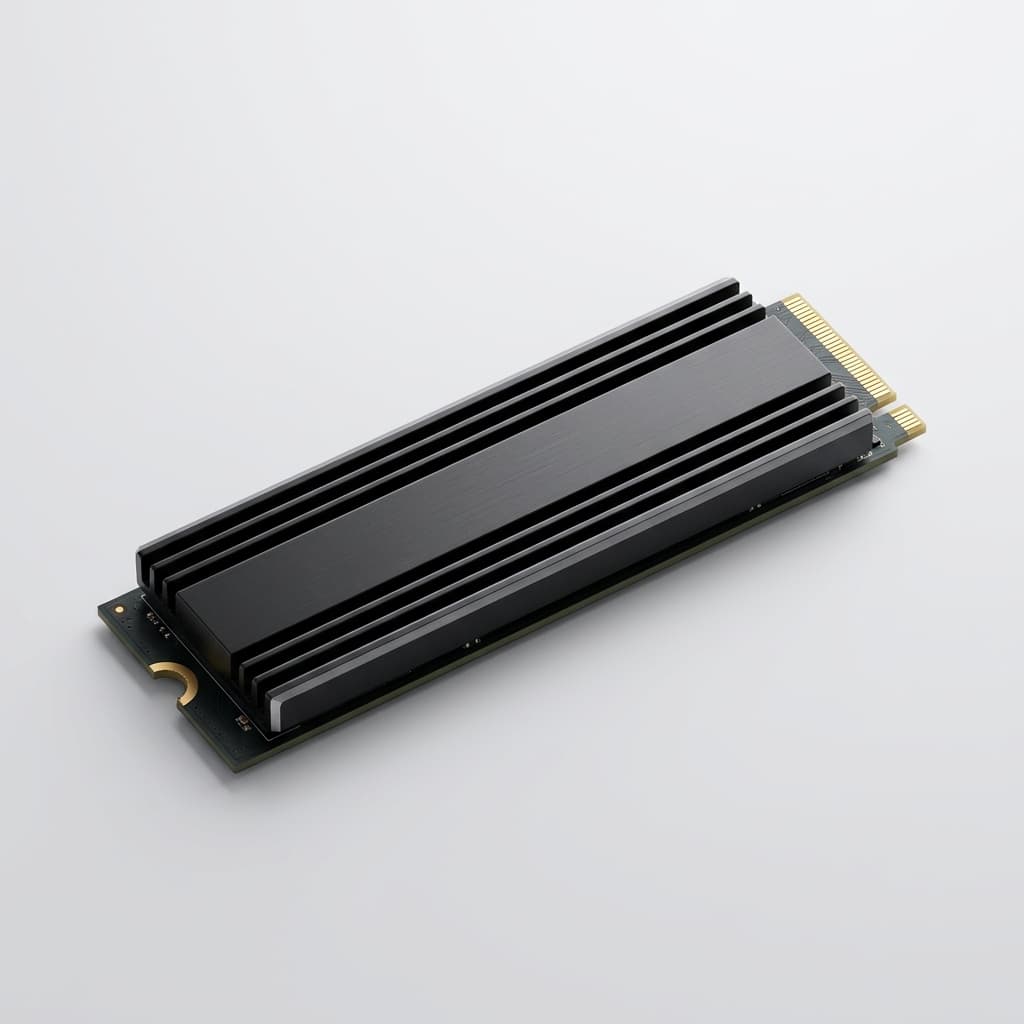
Check current prices on controllers, 3D wireless headsets, and fast NVMe SSD storage on Amazon.

As an Amazon Associate we earn from qualifying purchases.
Prepare Your TV Before Touching the Sliders
Before adjusting the in-game menu, stop your television from double-processing the HDR curve:
- Switch your television picture preset to Game Mode.
- Set your TV's HDR Tone Mapping option to HGiG (labelled Gradation Preferred on Sony televisions) and turn Dynamic Tone Mapping (DTM) Off.
- Open Pause > Settings > Display > HDR Calibration in Grand Theft Auto VI and press R1 (PS5) or RB (Xbox) to skip Image 1/3 (the Rockstar logo) and judge your changes using Image 2/3 and Image 3/3 (the daytime and nighttime boat scenes). You can press Triangle or Y to hide the UI and Square or X to reset a slider.
Recommended HDR Slider Presets by Display Type
Use the table below to offset Rockstar's broken luminance curve based on your television and room lighting:
| Display & Room Setup | Max Brightness | Paper White | Black Levels | Calibration Notes |
|---|---|---|---|---|
| 1,000+ nit OLED / Mini-LED (Dark Room) | 2000 | 35 | 20 | HDTVTest ~2x peak-nit offset rule; adjust Black Levels up from 0 if needed until shadow detail is barely visible |
| 600–800 nit Mid-Range HDR TV | 1200–1600 | 35–45 | 20 | Set Max Brightness to roughly double your panel's real peak nit rating |
| Bright Room Alternative (OLED / LED) | Match highlight clipping |
PlayStation 5 Video Output Settings
- Navigate to Settings > Screen and Video > Video Output and set Resolution to Automatic or 2160p on 4K displays.
- Set HDR to On When Supported rather than Always On, which forces fake HDR containers onto SDR content.
- Keep RGB Range on Automatic (or ensure it matches your television's HDMI Black Level setting) so black floors stay accurate.
VRR, 120 Hz & TV Post-Processing Cleanup
Set realistic expectations for Variable Refresh Rate (VRR) at 30 FPS. PlayStation 5 system-level VRR only operates at 48 FPS and above without low framerate compensation, meaning it has zero effect on Grand Theft Auto VI. On Xbox Series X, Digital Foundry notes that the console's 120 Hz VRR container feels slightly smoother during minor frame dips, though you should disable 120 Hz if you run into screen tearing or HDMI handshake quirks.
Finally, strip away television filters that smear textures or add input lag:
- Confirm Game Mode and Auto Low Latency Mode (ALLM) are enabled.
- Turn off TV Noise Reduction, which scrubs away fine pavement and foliage detail, and avoid cranking artificial TV sharpness sliders.
- Disable TV motion smoothing and frame interpolation, which introduces heavy input lag and visual artefacts: turn off TruMotion (LG), Picture Clarity or Motion Plus (Samsung), Motionflow (Sony), Motion Enhancement (Hisense), and Motion Clarity or Action Smoothing (TCL).
FAQ
Does GTA 6 have a 60 FPS Performance mode on PS5 or Xbox Series X?
No. Grand Theft Auto VI targets 30 FPS on all consoles—including PlayStation 5 Pro—and does not offer an in-game Graphics or Performance mode toggle.
Does GTA 6 use PS5 Adjust HDR or Xbox Calibrate HDR system settings?
No. Post-launch reference-monitor testing by HDTVTest confirmed that Grand Theft Auto VI currently ignores console-level HDR calibration metadata and relies entirely on its three in-game HDR Calibration sliders.