How to Back Up PlayStation and Original Xbox Game Saves
Published on 8/26/2026
How to Back Up PlayStation and Original Xbox Game Saves
Losing a hundred-hour role-playing campaign or a perfectly tuned racing garage is a heartbreaking rite of passage for many classic gaming enthusiasts. If you want to secure your childhood progress or protect newly acquired files, you need to back up retro console saves before aging hardware inevitably fails. This guide details the exact tools, modern software, and step-by-step methods required to safely extract and preserve your PlayStation and original Xbox data on modern storage formats.
The Hardware Reality of Needing to Back Up Retro Console Saves
The storage mediums we relied on during the fifth and sixth console generations were never designed to last forever. Original Xbox consoles utilise mechanical IDE hard disk drives that are now well over two decades old. These drives are actively failing at a rapid rate, suffering from stuck read/write heads, degrading platters, and dying spindle motors. When an original Xbox hard drive emits the dreaded clicking sound of death, it takes all internal data with it, making an original Xbox hard drive backup an urgent priority for any collector.
On the PlayStation side, the situation is slightly different but equally pressing. While solid-state flash memory is generally more robust than moving mechanical parts, the vintage memory cards of the late 1990s and early 2000s are highly susceptible to data rot. Every time a memory card is written to, the flash memory cells undergo wear. Vintage third-party memory cards from brands like Mad Catz or Joytech are notoriously unreliable, often using inferior flash chips that lose their charge over time, resulting in corrupted blocks and unreadable data.
Waiting for a failure to occur guarantees data loss. By taking a proactive approach to back up retro console saves, you bypass the limitations of aging hardware. Moving your data to a modern PC, a network-attached storage drive, or a high-quality MicroSD card ensures your gaming history is preserved in a format that can be easily duplicated, shared, and restored whenever needed.
Backing Up PS1 and PS2 Saves to PC or SD Card
Creating a reliable PS1 memory card backup or extracting PlayStation 2 data requires bridging the gap between proprietary Sony connectors and modern USB or SD card standards. Today, players have access to both modern solid-state replacements and clever software exploits to move data effortlessly.
The MemCard PRO PS1 PS2 is widely considered the ultimate modern solution for physical console hardware. This device uses a field-programmable gate array (FPGA) to act as a virtual memory card, interfacing directly with the PlayStation hardware while saving the actual data to a standard MicroSD card. It automatically creates a new virtual memory card for every game you boot, offering virtually unlimited storage. Furthermore, it features built-in WiFi, allowing you to access the MicroSD card's file system through a web browser on your PC to back up or restore saves without removing the card from the console.
For PlayStation 2 owners, a Free McBoot save backup is the most cost-effective method. Free McBoot is a softmod that boots directly from a memory card. By loading an application called uLaunchELF, you gain access to a file manager that can read both the PS2 memory card slots and the console's USB ports. This allows you to simply copy your save files from an official memory card and paste them onto a standard FAT32-formatted USB flash drive, making it incredibly easy to transfer PS2 saves to PC.
While legacy hardware exists, it is rarely recommended today. The original DexDrive was a serial port device used in the late 1990s to move PlayStation saves to a computer. Similarly, the official PS3 Memory Card Adaptor was released to help players move PS2 saves onto their PlayStation 3. Both devices command high collector prices today and suffer from severe driver compatibility issues on modern 64-bit Windows operating systems. Modern solutions serve as a vastly superior DexDrive alternative.
| Backup Method | Compatible Consoles | Storage Medium | Pros | Cons |
|---|---|---|---|---|
| MemCard PRO | PS1, PS2 | MicroSD Card / WiFi | Infinite storage, automatic game ID detection, wireless PC access. | Higher upfront cost, requires firmware updates. |
| Free McBoot (uLaunchELF) | PS2 (Fat and Slim) | USB Flash Drive | Very cheap, uses existing official memory cards, easy file management. | USB 1.1 speeds are slow, requires a modded memory card to boot. |
| PS3 Memory Card Adaptor | PS1, PS2 | PC Hard Drive (via USB) | Official Sony hardware, robust build quality. | Expensive, requires custom drivers for Windows 10/11. |
| DexDrive | PS1 | PC Hard Drive (via Serial) | Nostalgic legacy hardware. | Obsolete serial connection, entirely incompatible with modern PCs without adapters. |
Identifying Reliable PlayStation Memory Cards for Transfer
When you back up retro console saves by moving them between different storage mediums, you need a reliable bridge. Relying on cheap, modern clone memory cards to transfer your data is a massive risk. You should always seek out official Sony PS1 cards (model number SCPH-1020) and official PS2 cards (model number SCPH-10020).
Spotting a genuine Sony memory card requires a keen eye. Official cards feature high-quality textured plastic housing, perfectly aligned printed text, and specific internal components. If you open the plastic shell of a genuine PS2 card, you will find a branded Sony or Toshiba flash chip and a dedicated controller chip. Many modern knock-offs use a single, cheap "glob-top" chip hidden under a dome of black epoxy, which is highly prone to failure.
The most critical reason to avoid cheap clones is MagicGate encryption. Sony introduced MagicGate as a copy-protection standard for the PlayStation 2. Many unofficial memory cards lack the proper MagicGate hardware certification. While they might work for standard system data, specific PS2 titles—such as Kingdom Hearts, Resident Evil 4, and certain Final Fantasy games—actively check for MagicGate encryption before saving. If the encryption is missing, the game will either refuse to save entirely or corrupt the data upon writing.
The most secure strategy is to keep one genuine 8MB Sony card plugged into your console for active saving. Once you complete a game, use a softmodded console to transfer that save to your PC or a bulk storage device, keeping your official card clean and ready for the next title.
Shop the gear from this story
Hand-matched to what you’re reading — tested, and covered by our warranty.


Rescuing Original Xbox Saves via FTP and Softmodding
Because the original Xbox functions essentially as a modified Windows PC, your save files are stored directly on the internal IDE hard drive. Microsoft locked the file system to prevent tampering, meaning you cannot simply plug a USB drive into the console to extract your data. To perform an original Xbox hard drive backup, you must first softmod the console.
The Rocky5 Xbox Softmodding Tool is the current community standard. Once your console is softmodded and running a custom dashboard like UnleashX, you unlock the ability to access the console over a local network. Connect your Xbox to your home router using a standard Ethernet cable. The custom dashboard will display an IP address. Open an FTP client like FileZilla on your PC, enter the Xbox's IP address, and use the default credentials (typically "xbox" for both username and password).
Navigate to the internal hard drive's "E" partition. Here, you will find two critical folders: UDATA and TDATA. The UDATA folder contains all of your user save files, while the TDATA folder houses title updates and downloadable content. Drag both folders to your PC desktop. This process creates a perfect, bit-for-bit backup of your entire gaming history on that console.
If you prefer not to network your console, you can utilise an Xbox memory unit USB mod. This method requires a physical adapter cable featuring a female USB port on one end and a proprietary Xbox controller plug on the other. Connect a small-capacity USB flash drive (under 4GB is essential, as the console cannot read larger drives) to the controller port. The Xbox dashboard will format the drive into a FATX memory unit. You can then copy your saves individually from the hard drive to the USB stick using the standard Microsoft dashboard storage manager, and subsequently plug that USB stick into a PC to back up the files.
PAL Save Compatibility When You Back Up Retro Console Saves
A common misconception among modern players is that a save file is universally compatible with any copy of the game. In reality, PlayStation and Xbox save files are strictly tied to the region code of the physical media. A save file generated by a European PAL disc will not load if you insert a North American NTSC disc into the console.
This region locking is dictated by the game's Title ID. Every game released on these platforms has a unique alphanumeric code printed on the disc and the spine of the case. For example, a PAL copy of Metal Gear Solid for the PS1 might have the Title ID SLES-01370, while the NTSC version is SLUS-00594. When you view your backed-up files on a PC, you will often see folders named directly after these Title IDs rather than the game's actual title.
Keep the collection going
More retro finds picked to match this article.

Keep reading
More stories from the Retrobroker blog.
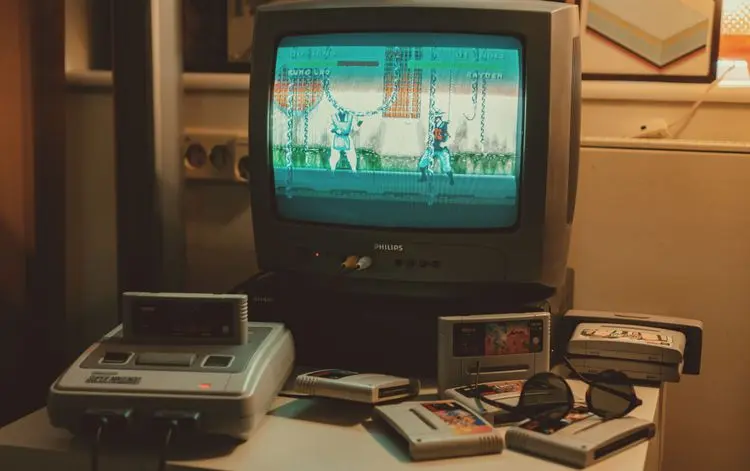
PAL vs NTSC-U vs NTSC-J: Understanding Video Game Region Codes
Unravel the differences between PAL, NTSC-U, and NTSC-J video game regions. Discover how region codes impact gameplay and compatibility. Start your retro gaming journey today!
Unlocking Nostalgia: How to Start Your Own Retro Gaming Collection
Discover the joy of retro gaming collection. Tips for beginners. Nostalgic journey through gaming history. Start your adventure today!
Awaiting New Challengers
Join The Bounty Board
Get exclusive first access to rare restocks, graded drops, and secret discount codes before anyone else.