GTA 6 Vehicle Menu Guide: Windows, Trunk & Turn Signals
Table of contents
Grand Theft Auto VI hides a suite of cabin and exterior controls right in front of you without ever prompting a tutorial. Once you know how to open the GTA 6 vehicle menu, you can roll down windows before a shootout, pop the trunk from the driver's seat, and separate in-menu toggles from direct D-pad driving shortcuts on PlayStation 5 and Xbox Series X|S.
How to Open the Hidden Vehicle Controls Menu in GTA 6
Rather than placing GTA 6 hidden car controls inside the pause screen, Grand Theft Auto VI tucks them into the in-car audio interface. Using the Default controller layout, follow these steps while seated inside any vehicle:
- Hold D-pad Left to bring up the standard Radio interface.
- While still holding D-pad Left, push the Right Analog Stick Up to switch from the middle Radio row to the upper Vehicle tab. Avoid pushing the Right Stick Down, as that opens the On-Demand library for podcasts and talk shows instead.
- Press L1 or R1 on PlayStation 5, or LB or RB on Xbox Series X|S, to scroll horizontally through the available options.
- Press Cross on PlayStation 5 or A on Xbox Series X|S to toggle or cycle the highlighted setting.
While the GTA 6 vehicle menu is open, gameplay slows down slightly without fully pausing, giving you breathing room to adjust settings in traffic. Keep in mind that UI icon states occasionally have a brief visual delay before updating, so closing the menu confirms your selection. If you switch to the Classic or Left-Handed presets under Settings > Control Scheme, some face-button prompts may differ from the Default inputs below.
GTA 6 Vehicle Controls & Shortcuts Quick Reference (PS5 & Xbox)
Not every car function lives inside the upper Vehicle tab. Some features use direct controller shortcuts while driving, whereas others require opening the menu first.
| Vehicle Function | PlayStation 5 Input (Default) | Xbox Series X|S Input (Default) | Access Method |
|---|---|---|---|
| Open Vehicle Tab | Hold D-pad Left + Right Stick Up | Hold D-pad Left + Right Stick Up | In-Car Audio Interface |
| Windows (Up/Down) | Select Window/Windows, press Cross | Select Window/Windows, press A | GTA 6 Vehicle Menu |
| Trunk / Tailgate | Select Trunk/Tailgate, press Cross | Select Trunk/Tailgate, press A | GTA 6 Vehicle Menu |
| Left Turn Signal | Tap D-pad Left | Tap D-pad Left | Direct Driving Shortcut |
| Right Turn Signal | Tap D-pad Right | Tap D-pad Right | Direct Driving Shortcut |
| Hazard Lights | Select Hazards, press Cross |
How to Pop the Trunk or Tailgate (And Why the Hood Is Different)
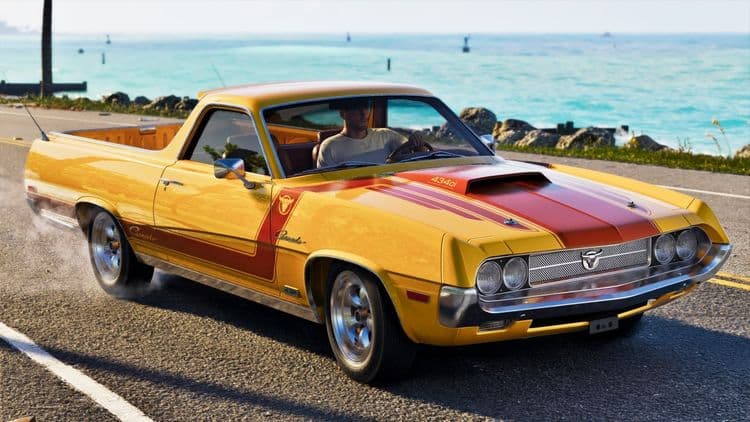
If you are looking for how to open trunk in GTA 6 without stepping out into traffic, open the Vehicle tab, highlight Trunk, and press Cross on PlayStation 5 or A on Xbox Series X|S. On pickup trucks—such as Jason Duval's personal Vapid Ganado—the Trunk label is replaced by Tailgate, which lowers and raises the rear bed panel.
Trunks are far more than cosmetic in Grand Theft Auto VI. They act as mobile gear storage where you can stash spare firearms, larger melee weapons like bats and shovels, and extra outfits for quick post-robbery wardrobe changes. Police cruiser trunks also frequently hold weapons and tools worth looting.
To grab your gear, either pop the trunk from the driver's seat first or walk up to the rear of the car on foot, using Triangle on PlayStation 5 or Y on Xbox Series X|S followed by L1 or LB to access your loadout. If you speed away in a hurry with the lid still raised, just open the GTA 6 vehicle menu while driving to shut it remotely.
Despite what a few circulating clips suggest, you cannot pop the car hood (bonnet) from inside the Vehicle tab. Checking under-hood performance stats in the bottom-right corner of the screen is strictly an on-foot interaction at the front of the car, and it requires turning the engine off first.
How to Use Turn Signals and Hazard Lights
A common point of confusion around GTA 6 turn signals controls is looking for blinkers inside the menu. Individual left and right indicators do not use the Vehicle tab at all; instead, they rely on quick D-pad taps while driving:
- Left Turn Signal: Quickly tap D-pad Left.
- Right Turn Signal: Quickly tap D-pad Right.
- Cancel Turn Signal: Complete your turn to shut the blinker off automatically, or tap the same D-pad direction a second time to cancel it manually.
Timing your press matters here. Keep the input to a crisp tap, because holding D-pad Left opens the Radio and Vehicle interface, while holding D-pad Right brings up the Partner and Explosives menu. Note that while some early control lists suggest double-tapping D-pad Left to quick-mute the radio, testing shows this frequently triggers your left blinker instead—toggling audio via Cross or A inside the Radio row is much cleaner.
Activating GTA 6 hazard lights works differently from single blinkers. To flash both sides simultaneously, open the hidden Vehicle tab, scroll to Hazards, and press Cross on PlayStation 5 or A on Xbox Series X|S.
Engine, Headlights, Roofs & Other Vehicle-Specific Options
Beyond glass, trunks, and blinkers, the menu adapts its icons to match whatever you are driving or piloting.
Ignition and Headlights
If you want to turn off engine GTA 6 style while staying seated—ideal for laying low quietly in a parked car or prepping the vehicle before checking under the hood on foot—highlight Engine in the Vehicle tab and press Cross or A. Press it again whenever you are ready to restart the ignition. Conversely, if you want to step out of the car while leaving the engine, headlights, and radio running, double-tap Triangle or Y as you exit.
Selecting Headlights in the menu cycles between Automatic, Low beam, High beam, and Off. For faster adjustments on the road, simply tap Circle on PlayStation 5 or B on Xbox Series X|S to cycle your beams without opening any UI—just avoid holding Circle or B, which makes Jason or Lucia duck low behind the wheel.
Playing GTA on PS5, Xbox, or PC? Top up your wallet for less
Get instant digital PlayStation Store, Xbox, and Steam gift cards on Eneba for editions, add-ons, and in-game currency.
Affiliate link — RetroBroker may earn a commission at no extra cost to you.
Roofs, Underglow, Motorcycles, Boats, and Trailers
Supported cars add GTA 6 convertible roof controls—labelled Convertible Roof or Sunroof—alongside an Underglow toggle for neon underbody lighting on modified cars and compatible boats. Unlike windows, raising or lowering a convertible roof requires bringing your car to a complete stop first.
Other vehicle classes swap in their own dedicated tools:
- Motorcycles: Display a stripped-down Vehicle tab containing only Headlights, Hazards, and Engine.
- Boats: Add an Anchor toggle alongside Underglow so you can hold your position in the water without drifting.
- Hitched Trucks: Display a Detach Trailer option in the menu, which can also be triggered directly with D-pad Right.
FAQ: GTA 6 Vehicle Menu Controls
Can you open the car hood from the GTA 6 Vehicle menu?
No. The in-car Vehicle tab only opens the Trunk or Tailgate. To open the hood and view vehicle performance stats, you must turn the engine off first, exit the car, and interact with the hood on foot.
Why does the Radio menu open when I try to use my left turn signal?
Turn signals require a quick tap on D-pad Left or D-pad Right. Holding D-pad Left for too long triggers the Radio and Vehicle Controls menu instead.
Do you have to stop driving to roll down windows or lower a convertible roof?
You can roll windows up or down while moving at any speed, and the GTA 6 vehicle menu slows gameplay slightly while open. However, raising or lowering a convertible roof requires bringing the car to a complete stop.
How do you leave the car engine and lights running when stepping out?
Double-tap Triangle on PlayStation 5 or Y on Xbox Series X|S as you exit the vehicle to leave the engine, headlights, and radio running.
Conclusion
Upgrade your console setup for GTA
Check current prices on controllers, 3D wireless headsets, and fast NVMe SSD storage on Amazon.

Sony DualSense Wireless Controller
Check on Amazon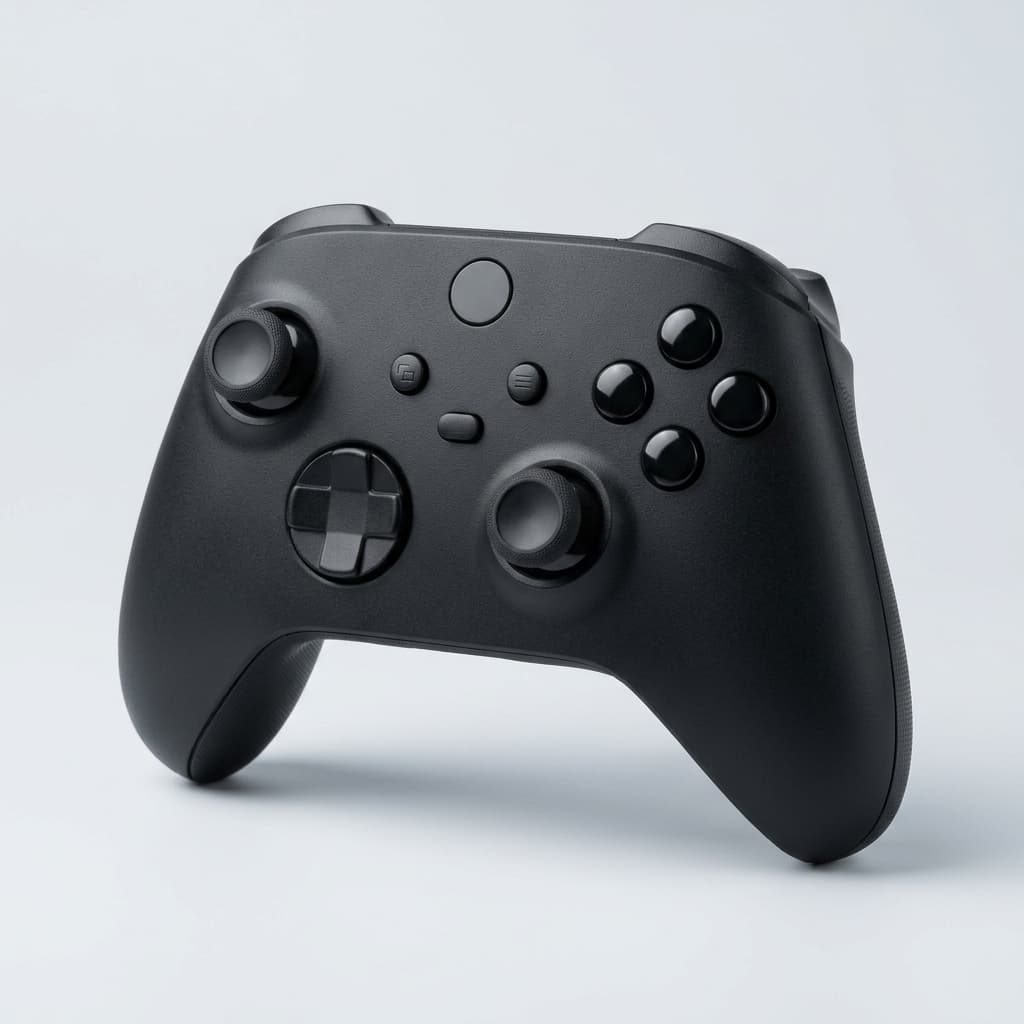
Xbox Wireless Controller (Carbon Black)
Check on AmazonAs an Amazon Associate we earn from qualifying purchases.