How to Use Auto-Drive in GTA 6: Exact PS5 & Xbox Button Combo
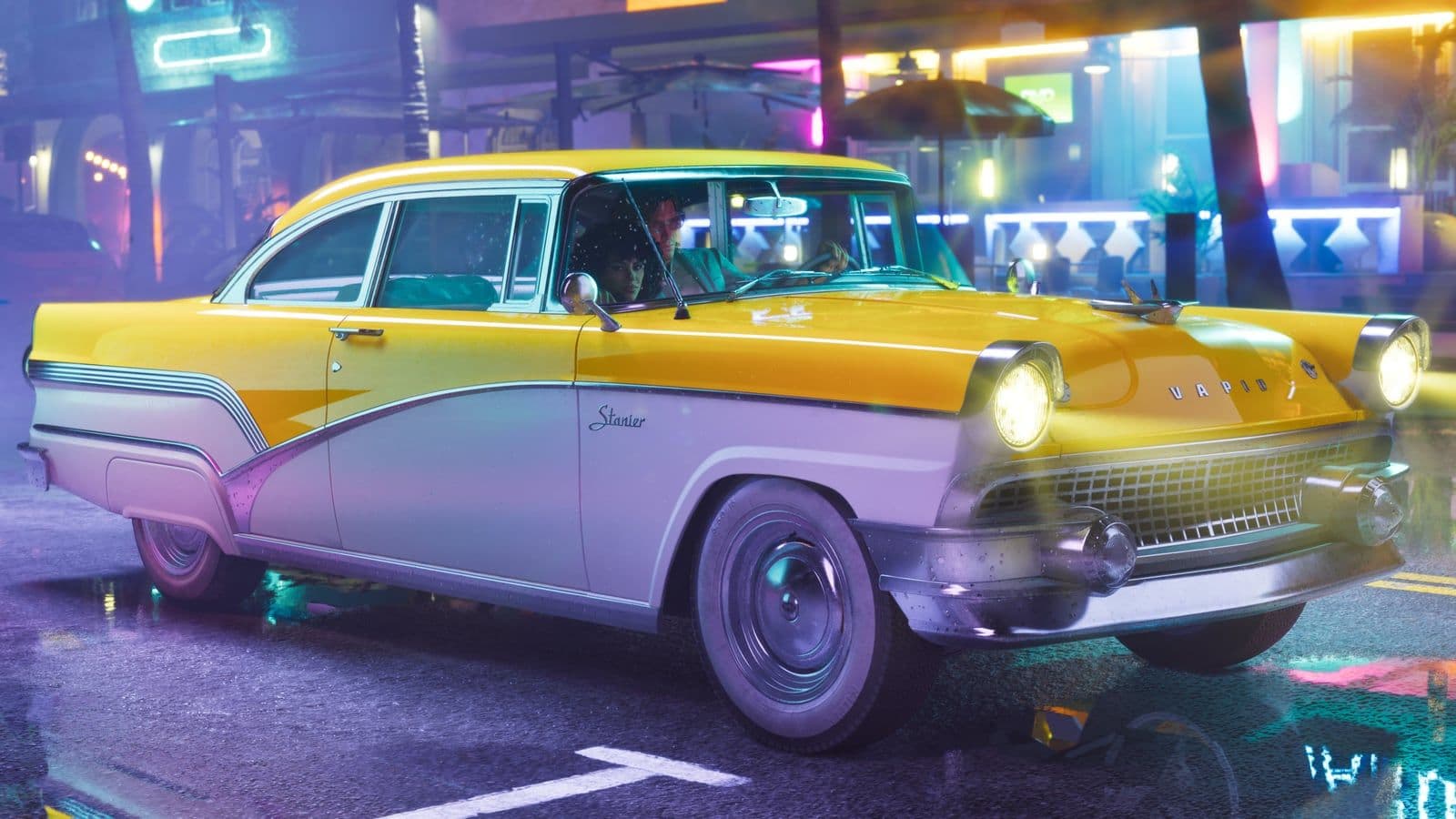
Table of contents
Crossing Leonida's sprawling highways does not always require keeping your thumb pinned to the accelerator. Learning how to use Auto-Drive in GTA 6 lets you hand the steering wheel over to the AI so you can take in the scenery and listen to character banter uninterrupted. Below, you will find the exact PlayStation 5 and Xbox Series X|S button sequence, the Accessibility setting that unlocks off-road cruising, and the Chapter 2 partner-driving alternative.
Prerequisites Before Activating Auto-Drive
Rockstar Games makes Auto-Drive available right from the opening hours of Grand Theft Auto VI on PlayStation 5 and Xbox Series X|S, though the game never gives you an explicit tutorial for it. Because no PC version has been released or officially announced yet, native prompts only exist for console controllers. Before trying the input sequence, make sure you meet three basic conditions so the option appears on screen.
- Set an active destination by following a live mission objective or placing a custom green map waypoint (press X on PS5 or A on Xbox) so the AI has a valid GPS route.
- Sit in the driver's seat of a motorised land vehicle—such as a car, truck, or motorcycle—or a boat; aircraft like planes and helicopters do not support Auto-Drive.
- Position your vehicle on a public paved road or navigable water if you are playing on default settings. While some players can trigger the mechanic from a standstill with the engine running, driving forward along your GPS route helps the prompt engage reliably if it refuses to appear while stationary.
How to Use Auto-Drive in GTA 6: Exact Button Combo (PS5 & Xbox Series X|S)
Activating this feature requires a quick two-stage input through the camera menu rather than a single button tap. If you have switched to Left-Handed or Classic controller presets, keep an eye on the bottom-right UI overlay in case your specific layout shifts these inputs. On standard layouts, follow this GTA 6 Auto-Drive button combo step by step:
- Press and hold Down on the D-Pad while behind the wheel to open the camera options overlay in the bottom-right corner of the screen.
- While still holding Down on the D-Pad, press Options on PlayStation 5 or Menu on Xbox Series X|S to enter Cinematic camera mode.
- Wait a moment for the cinematic view to activate and display the "Enable Auto Drive" prompt in the bottom-right corner, then press and hold Circle (PS5) or B (Xbox Series X|S) until Jason or Lucia takes over steering.
Here is the complete breakdown of the GTA 6 Auto-Drive controls across both consoles once you are on the road:
| Action | PlayStation 5 | Xbox Series X|S |
|---|---|---|
| Open Camera Overlay | Hold D-Pad Down | Hold D-Pad Down |
| Enter Cinematic Mode | Hold D-Pad Down + Press Options | Hold D-Pad Down + Press Menu |
| Enable Auto-Drive (in Cinematic Mode) | Hold Circle | Hold B |
| Increase Speed Tier | Tap R2 |
How to Use Auto-Drive in GTA 6 Off-Road & Fix Greyed-Out Prompts
The most common reason for GTA 6 Auto-Drive not working—showing a greyed-out or completely missing prompt—comes down to surface and safety rules. By default, the game sets Auto-Drive to Restricted, which blocks activation whenever you are off-road, parked on a beach, or caught in combat.
You can remove the terrain limitation in a few seconds through the pause menu. Navigate to Settings > Gameplay > Accessibility > Auto Drive and change the option to grant GTA 6 unrestricted Auto-Drive. In Unrestricted mode, you can trigger cruise control on dirt or sand, and your character will carefully steer back onto the nearest paved road to follow your GPS path.
Alternative Cruise Control: Letting Jason or Lucia Drive (Chapter 2)
Once you unlock free character switching during the Chapter 2 mission "Coffee Break", you gain a second hands-off travel option whenever both protagonists are together. Knowing how to make your partner drive in GTA 6 lets you ride shotgun with the standard gameplay camera instead of locking yourself into Cinematic mode. You can set this up from the pavement or mid-journey:
- From outside a vehicle: Stand near the car with your partner, hold Right on the D-Pad to open the Partner Menu, select "You Drive" with X (PS5) or A (Xbox), climb into the passenger seat, and place a map waypoint.
- While already driving together: Set a map waypoint, hold Right on the D-Pad—do not tap it, as tapping Right detonates placed explosives—and press R1 (PS5) or RB (Xbox) to swap control to the passenger so the other protagonist takes over steering.
- Issuing passenger commands: Hold Right on the D-Pad at any time while riding shotgun to tell your partner to speed up, slow down, pull over, or split up.
Auto-Drive Limitations, Fuel Use, and Traffic Rules
Treat Auto-Drive as a scenic cruise mechanic rather than a time-saver. Even on Speed 3, the AI obeys traffic laws, stopping at red lights, yielding at junctions, and sitting patiently behind traffic jams or road accidents. It is noticeably slower than driving yourself and does not replace true fast travel via taxis or the in-game RydeMe app.
Your vehicle also burns fuel normally while cruising automatically, so keep an eye on your gauge and pull into a gas station before running dry. Handing control to the AI is great for preventing clumsy player crashes from cutting off ambient dialogue between Jason and Lucia, though erratic Leonida NPC drivers can still clip your bumper and instigate road-rage attacks. Finally, if you engage Auto-Drive on a boat with a waypoint placed inland, your character will pilot the craft as close as navigable water allows before the system shuts off automatically.
Playing GTA on PS5, Xbox, or PC? Top up your wallet for less
Get instant digital PlayStation Store, Xbox, and Steam gift cards on Eneba for editions, add-ons, and in-game currency.
Affiliate link — RetroBroker may earn a commission at no extra cost to you.
FAQ
Why is the Auto-Drive prompt not showing up or greyed out in GTA 6?
Check that you have an active mission objective or custom green map waypoint set, are sitting in the driver's seat of a land vehicle or boat rather than an aircraft, and are moving along a paved road. To enable off-road activation, go to Settings > Gameplay > Accessibility > Auto Drive and switch it from Restricted to Unrestricted.
Does Auto-Drive use gas in GTA 6?
Yes, your vehicle continues to consume fuel at standard rates while Auto-Drive is active. If your tank runs low during a long cross-state trip, you will still need to stop and refuel at a gas station.
Can you use Auto-Drive in planes or helicopters in GTA 6?
No, Auto-Drive does not work in planes, helicopters, or other aircraft. The feature is strictly limited to motorised land vehicles—including cars, trucks, and motorcycles—and boats or watercraft.
How do you turn off Auto-Drive without getting out of the car?
Press and hold Circle on PlayStation 5 or B on Xbox Series X|S to toggle Auto-Drive off directly. Alternatively, press and hold Down on the D-Pad to leave Cinematic camera mode and return immediately to manual driving.
Mastering Cruise Control Across Leonida
Knowing how to use Auto-Drive in GTA 6 turns long highway stretches into a relaxed way to soak up Leonida's atmosphere without missing story dialogue. Flip the Accessibility setting to Unrestricted so dirt shoulders never block the prompt, and switch to Chapter 2's partner-driving feature whenever you prefer keeping your standard camera view. At RetroBroker, we have spent decades exploring open-world crime games from their earliest top-down roots to modern consoles, and small quality-of-life mechanics like these make massive maps far more enjoyable to navigate.
Upgrade your console setup for GTA
Check current prices on controllers, 3D wireless headsets, and fast NVMe SSD storage on Amazon.
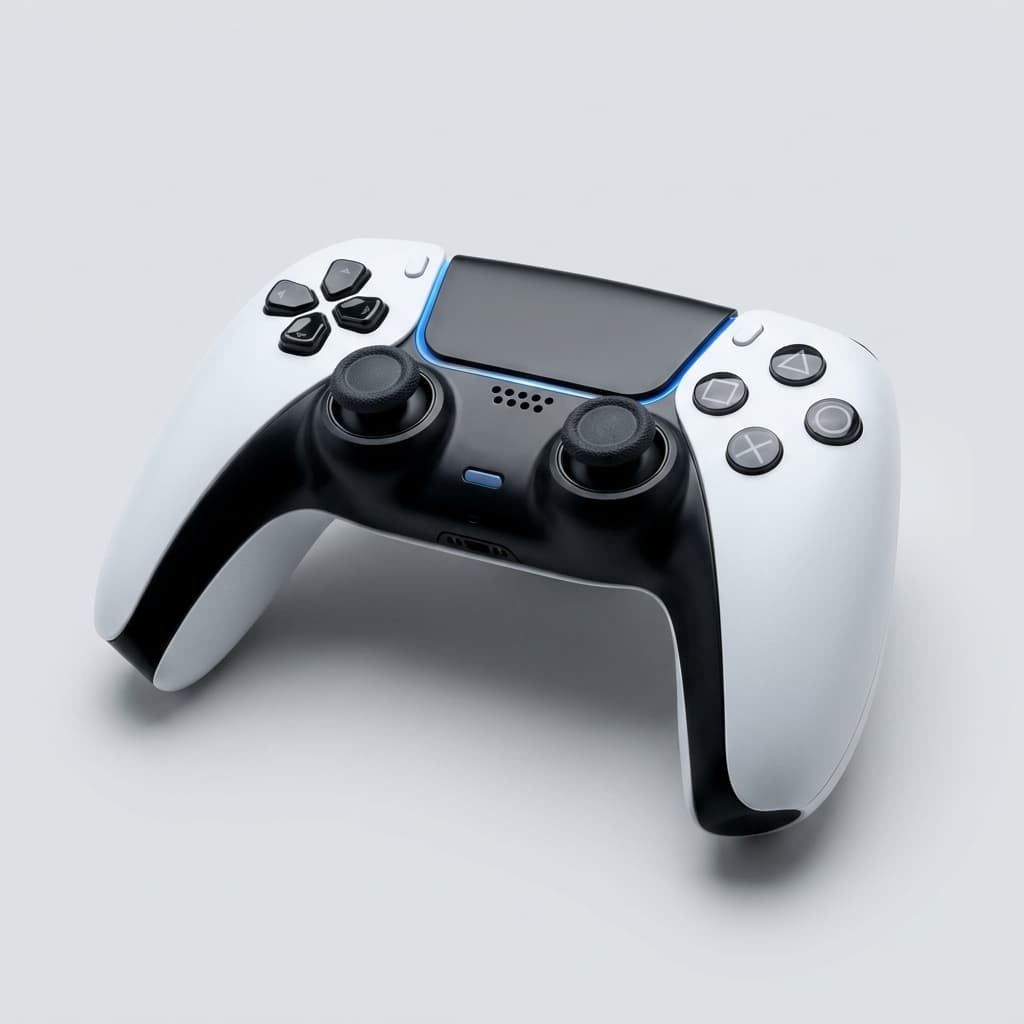
Sony DualSense Wireless Controller
Check on Amazon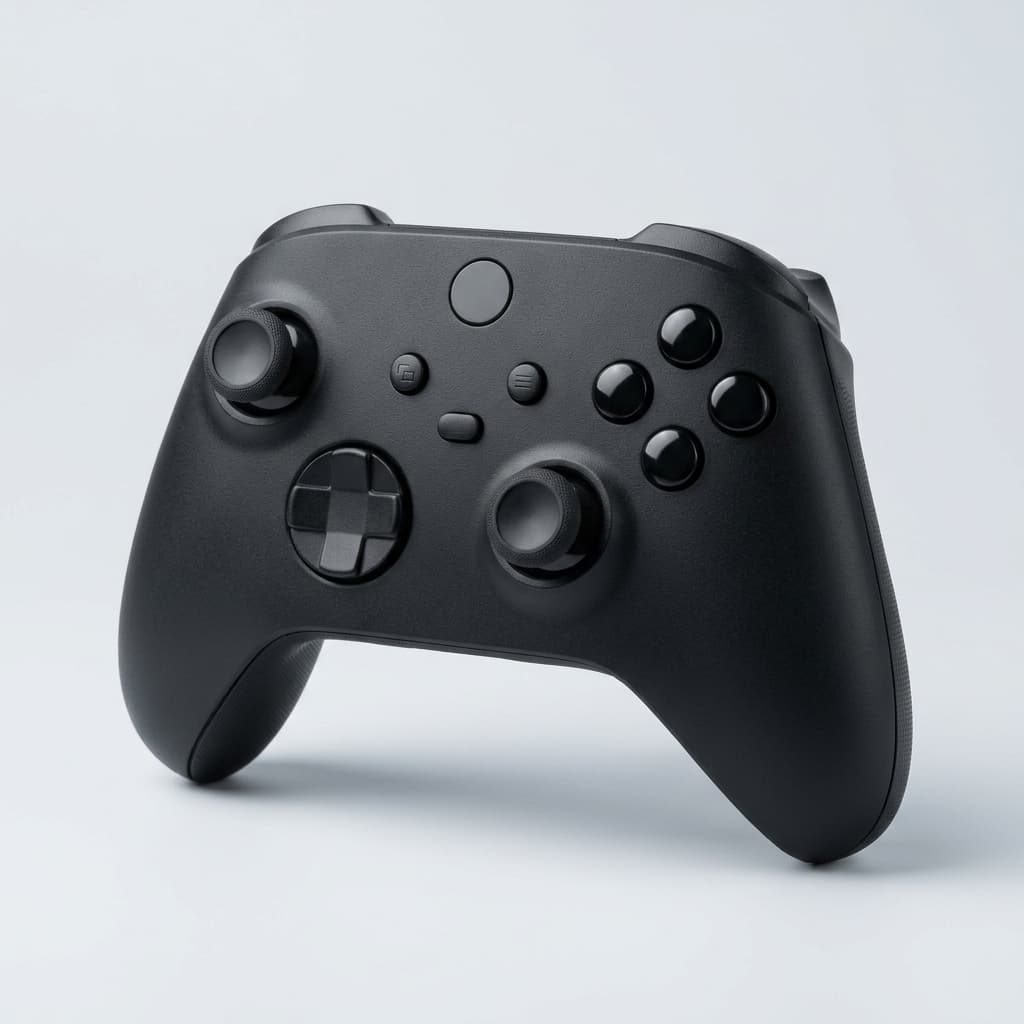
Xbox Wireless Controller (Carbon Black)
Check on AmazonAs an Amazon Associate we earn from qualifying purchases.