RetroBroker Logo
WishlistAccount
Cart (0)

Stay in the loop

Subscribe to our newsletter for exclusive offers, updates, and more.

RETROBROKER

Quality products, exceptional service, and lightning-fast delivery. Your one-stop shop for everything you need.

Categories
  • PlayStation
    • PlayStation 1
    • PlayStation 2
    • PlayStation 3
    • PlayStation 4
    • PlayStation Portable (PSP)
    • Akcesoria
    • PlayStation Vita
    • PlayStation 5
  • Nintendo
    • Nintendo 64
    • GameBoy
    • GameBoy Advance
    • Nintendo DS
    • Nintendo 3DS
    • Nintendo Wii
    • Nintendo Wii U
    • Nintendo Entertainment System (NES)
    • Nintendo Switch
    • Nintendo Gamecube
    • Akcesoria Nintendo
    • Nintendo SNES
    • GameBoy Color
  • Xbox
    • Xbox One
    • Xbox 360
    • XBOX OG
  • SEGA
    • Sega Dreamcast
    • Sega Mega Drive
    • Sega Saturn
    • Sega Master System
    • Sega Game Gear
    • Sega Genesis
  • PC Games
    • Blu-Ray Video
      • View all categories→
      Collections
      • PlayStation
      • PlayStation 1
      • PlayStation 2
      • PlayStation 3
      • PlayStation 4
      • Nintendo
      • View all collections→
      Useful Links
      • Contact
      • Terms and Conditions
      • Privacy Policy
      • Shipping and Returns
      • Data Deletion Policy
      Language:American English
      Shipping to:United States

      © Copyright 2026 Retrobroker sp. z o.o. — Designed in Poland

      This website is independent and not affiliated with or endorsed by Nintendo or Sony. All trademarks, copyrights, and logos featured on this site belong to their respective owners.

      Retrobroker is a registered trademark of Retrobroker sp. z o.o. Przemyslowa 4, 10-418 Olsztyn, Poland KRS: 0001062625 NIP: 7393990456 REGON: 526634737

      1. Home
      2. Blog
      3. PlayStation 4 Not Showing Up On TV? Here's How To Fix It

      PlayStation 4 Not Showing Up On TV? Here's How To Fix It

      Published on 8/16/2025

      PlayStation 4 Not Showing Up On TV? Here's Your Ultimate Troubleshooting Guide

      You’ve carved out some precious time, you’ve got your favorite drink, and you’re ready to dive into a sprawling RPG or a high-octane shooter on your PlayStation 4. You press the power button on the console, hear that familiar beep, see the blue light pulse to white... but your TV screen remains stubbornly, frustratingly black. It’s a moment that can sink your heart. The message "No Signal" or "No Input Detected" glares back at you, a digital wall between you and your game.

      At Retro Broker, we live and breathe gaming. We know that whether you're firing up a brand new release on your PS4 or dusting off a classic SEGA Genesis, nothing should stand in the way of that magic. A technical hiccup like this is more than an inconvenience; it's a fun-blocker. But don't despair and definitely don't start pricing new consoles just yet. This "PS4 no signal" issue is a common problem, and more often than not, it's something you can fix yourself.

      This comprehensive guide will walk you through every potential solution, from the incredibly simple to the more advanced. Let’s get your PlayStation 4 back on the big screen where it belongs.

      Step 1: Cover The Absolute Basics First

      Before we dive into the console's internal settings, let's rule out the most common culprits. It might sound obvious, but in a moment of panic, it's easy to overlook the simple stuff. Go through this checklist methodically.

      Check Your TV's Input Source

      This is the number one reason for a "no signal" message. Every modern TV has multiple HDMI ports. Your remote control has a button labeled "Input," "Source," or sometimes a symbol of a box with an arrow going into it.

      1. Press this button.
      2. A menu will appear showing all available inputs (e.g., HDMI 1, HDMI 2, AV, Component).
      3. Look at the back of your TV to see which physical HDMI port your PS4 is plugged into.
      4. Use your remote to cycle through the inputs until you have selected the correct one. Wait a few seconds on each one to see if the PS4 screen appears.

      Inspect Your Physical Connections

      A loose cable is a silent fun-killer. Don't just look at them; physically unplug and replug everything.

      • The HDMI Cable: Unplug the HDMI cable from both the back of your PS4 and the back of your TV. Wait a few seconds, then plug them back in, ensuring they are pushed in firmly until they click or sit snugly. A partially inserted cable can transmit power data (making the TV think something is there) but not the video signal itself.

      Shop the gear from this story

      Hand-matched to what you’re reading — tested, and covered by our warranty.

      • Thumbnail

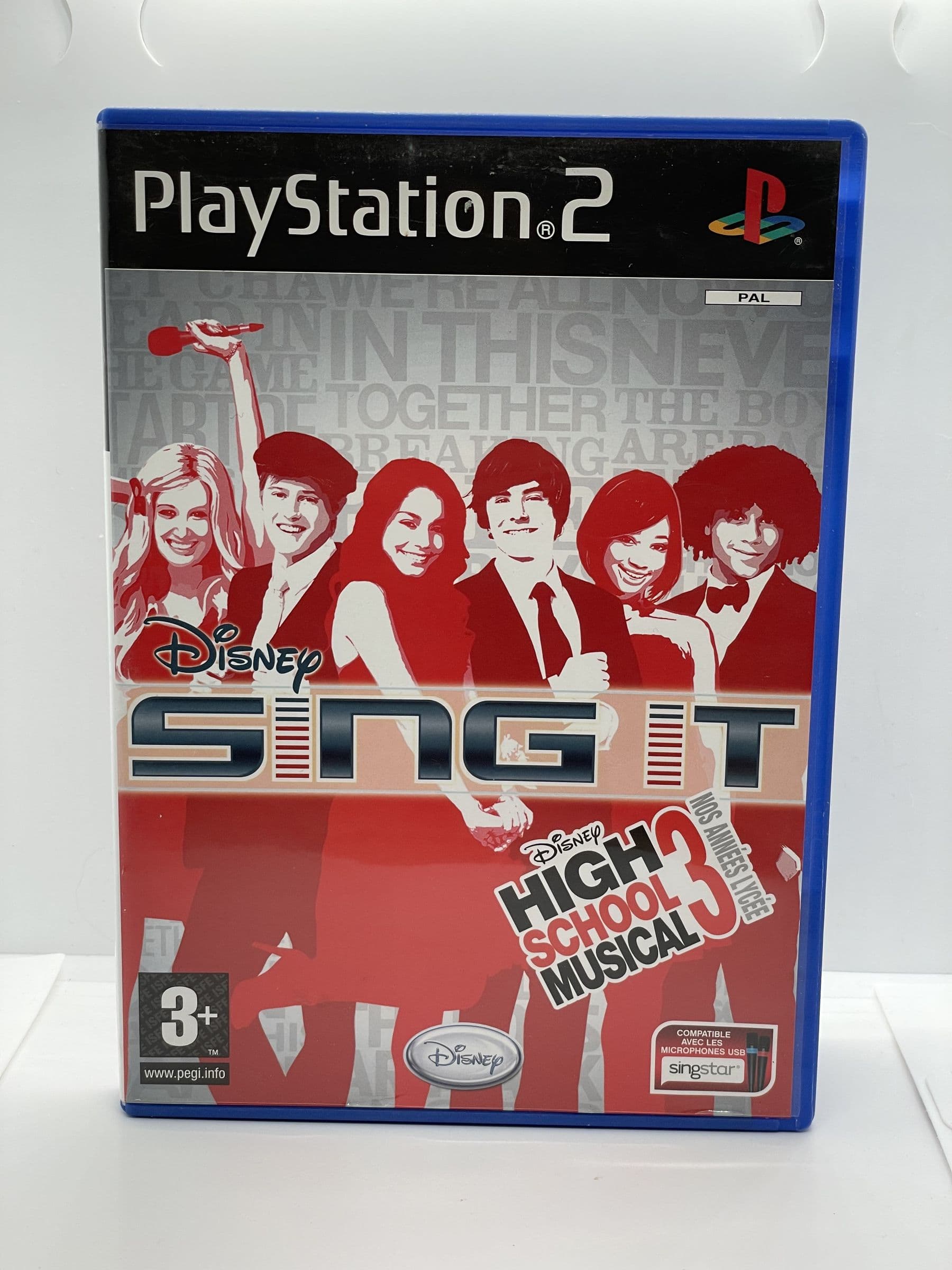
        Disney High School Musical: Sing It! PS2

        $10.00
      • Thumbnail

        Disney Sing It: High School Musical 3: Senior Year PS2

        $10.00

      Step 3: Boot Your PS4 into Safe Mode

      If you've tried everything above and are still staring at a black screen, it's time to bring out the big gun: Safe Mode. Safe Mode is a special diagnostic mode that starts the PS4 with only the most basic functions active. This allows you to troubleshoot problems without needing the full system to load. Crucially, it forces the PS4 to output video at the lowest possible resolution (480p), a signal that virtually any modern TV can understand.

      How to Enter Safe Mode

      The timing here is key, so follow these steps exactly:

      1. Start with the PS4 completely turned off (not in Rest Mode). If it's on, press and hold the power button on the console until you hear the second beep.
      2. Press and hold the power button on the front of the console again.
      3. You will hear an initial first beep as soon as you press the button. Keep holding the button down.
      4. After about 7-8 seconds, you will hear a second beep. Once you hear that second beep, you can release the power button.
      5. You will be prompted to connect your DualShock 4 controller via a USB cable and press the PS button. Note: The controller will not work wirelessly in Safe Mode. You must have it physically connected to the console.

      If you successfully see the Safe Mode menu on your screen, that's fantastic news! It means your PS4's core hardware is likely fine, and the issue is a software or settings conflict.

      Using Safe Mode to Fix the Black Screen

      The Safe Mode menu presents several options. For a "no signal" issue, we are interested in two of them.

      Option 2: Change Resolution

      This is the most common fix for the black screen problem. It forces the PS4 to reboot and output at a standard 480p resolution. Your TV might have been struggling to display a higher resolution (like 1080p or 4K) that the PS4 was previously set to, creating a "handshake" issue.

      1. In the Safe Mode menu, use the D-pad on your connected controller to navigate down to Option 2: Change Resolution.
      2. Press X to select it.
      3. The console will tell you it's going to restart. Select .

      Keep the collection going

      More retro finds picked to match this article.

      Shop all products
      • Thumbnail

        Disgaea 2 "Best of" Soundtrack

        $10.00
      • Thumbnail

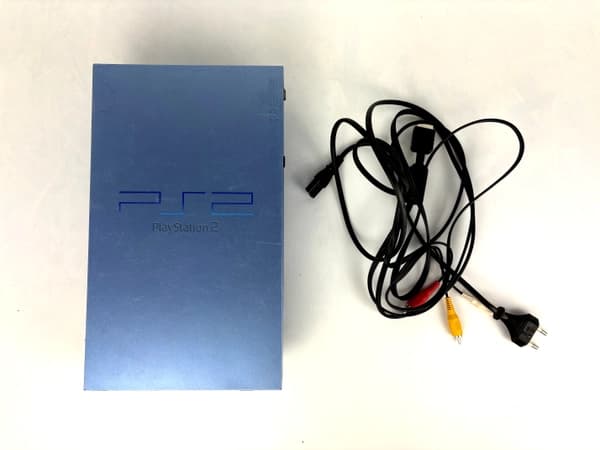
        PlayStation 2 Console SCPH-50004 Aqua Blue Set

        Out of Stock

      Keep reading

      More stories from the Retrobroker blog.
      • PAL vs NTSC-U vs NTSC-J: Understanding Video Game Region Codes

        PAL vs NTSC-U vs NTSC-J: Understanding Video Game Region Codes

        Unravel the differences between PAL, NTSC-U, and NTSC-J video game regions. Discover how region codes impact gameplay and compatibility. Start your retro gaming journey today!
        2/24/2024
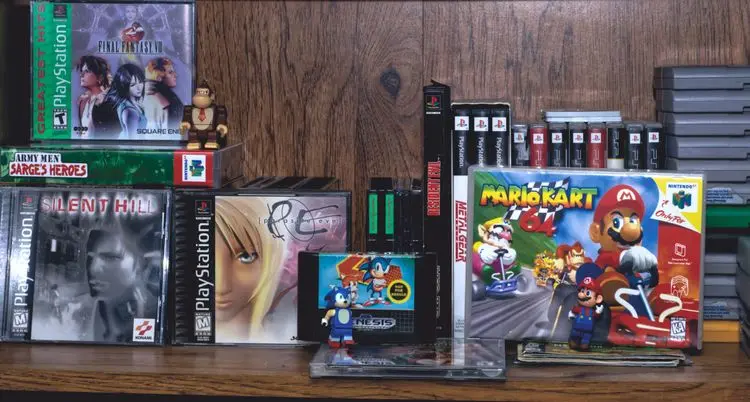
      • Unlocking Nostalgia: How to Start Your Own Retro Gaming Collection

        Unlocking Nostalgia: How to Start Your Own Retro Gaming Collection

        Discover the joy of retro gaming collection. Tips for beginners. Nostalgic journey through gaming history. Start your adventure today!

        3/5/2024
      Awaiting New Challengers

      Join The Bounty Board

      Get exclusive first access to rare restocks, graded drops, and secret discount codes before anyone else.


      No spam. Unsubscribe anytime.

    • The Power Cable: Do the same for your PS4's power cable. Unplug it from the console and the wall outlet. Reseat it firmly.
    • Try a Different HDMI Cable

      HDMI cables can and do fail. They get bent, twisted, or can have internal breaks that aren't visible from the outside. If you have another HDMI cable in your house—perhaps from a streaming device, another console, or a Blu-ray player—swap it in. Use this new cable to connect your PS4 to the TV and see if the signal appears.

      Try a Different HDMI Port

      Just like cables, the HDMI ports on your TV can also fail. If your TV has multiple HDMI ports, unplug the PS4 from its current port and try a different one. Remember to also change the TV's input source to match the new port you are using.

      Try a Different TV or Monitor

      This is a crucial diagnostic step. If possible, connect your PS4 to a completely different television or even a computer monitor with an HDMI input.

      • If the PS4 displays on the other screen: The problem is almost certainly with your original TV's settings or its hardware.
      • If the PS4 still shows a black screen on the second display: The problem is very likely with the PS4 console or its HDMI cable. This allows you to focus your troubleshooting efforts on the console itself.

      Step 2: Perform a Full Power Cycle

      If the basic checks didn't work, the next step is a full power cycle. This is more than just turning the console off and on. Modern consoles often go into a low-power "Rest Mode," which doesn't fully clear out temporary software glitches. A power cycle forces a complete system refresh.

      1. Press and hold the power button on the front of the PS4 console for at least 7-10 seconds. You should hear one beep when you first press it, and a second beep after a few seconds. This ensures it's completely powered off, not in Rest Mode.
      2. Once the console is off and all lights are extinguished, unplug the power cord from the back of the PS4.
      3. Leave the console completely unplugged for at least 5 minutes. This allows the internal power capacitors to fully discharge, clearing any lingering bad data in the system's memory.
      4. Plug the power cord back into the PS4 and the wall outlet.
      5. Turn on your TV first.
      6. Now, press the power button on your PS4 to turn it on.

      This simple procedure fixes a surprising number of black screen issues by clearing out temporary bugs in the video output process.

      OK
    • Your PS4 will reboot. This time, it should display on your TV, albeit in a very low, blocky resolution.
    • Once you're at the main login screen, go to Settings > Sound and Screen > Video Output Settings > Resolution.
    • From here, you can select your TV's native resolution (usually 1080p or 2160p for 4K). If you're unsure, you can leave it on Automatic.
    • Option 8: Set HDCP Mode

      This is a more technical solution but can be a lifesaver, especially for older HD TVs or if you use capture cards. HDCP stands for High-bandwidth Digital Content Protection. It's a form of copy protection built into HDMI connections. Sometimes, a mismatch in HDCP versions between the PS4 and the TV can cause the screen to go black.

      1. In the Safe Mode menu, navigate down to Option 8: Set HDCP Mode.
      2. Select it. You will see two choices. By default, it's on Automatic.
      3. Select HDCP 1.4 Only.
      4. The console will restart. This forces a more compatible, older version of the copy protection, which can often resolve the "no signal" issue on certain displays. If this works, you can leave it on this setting. The only downside is that some 4K video streaming apps may not work, but your games will be fine.

      Step 4: What if It’s a Hardware Problem?

      If you tried booting into Safe Mode and still got a black screen, we need to consider the possibility of a hardware failure.

      The "White Light of Death" (WLOD)

      When you turn on a healthy PS4, the light bar on the console pulses blue and then turns solid white. If your console's light turns white but there is no picture on the screen (even in Safe Mode), you may be experiencing what gamers call the "White Light of Death." This almost always points to a hardware failure, most commonly a faulty HDMI port or a failed HDMI encoder IC chip on the motherboard.

      Inspect the PS4's HDMI Port

      Take a flashlight and look closely at the HDMI port on the back of your PS4. Do you see any bent or broken pins inside? Is the port itself loose or damaged? The pins are very delicate, and plugging the cable in at an angle can easily damage them. If the port is physically damaged, it will need to be professionally repaired or replaced. This is a delicate soldering job and not recommended as a DIY project unless you have experience with electronics repair.

      Getting Back to the Game

      Going through these troubleshooting steps can be tedious, but they are your best bet for solving the "PlayStation 4 not showing up on TV" problem on your own. Start with the simplest solutions and work your way up methodically. In the vast majority of cases, a new HDMI cable, a full power cycle, or a quick trip into Safe Mode to change the resolution will be all it takes to fix the issue.

      We hope this guide has helped you get your PS4's picture back, clearing the path for your next great gaming adventure. At Retro Broker, we believe every console, from the classics that defined our childhoods to the modern powerhouses like the PS4, deserves to be in action. Now go and enjoy your game

    • Thumbnail

      Sniper Elite V2 PS3

      Out of Stock
    • Thumbnail

      Sports Champions 2 PS3 (game only)

      Out of Stock
    • The Top 10 Most Influential PS1 Games of All Time: A Retrospective

      The Top 10 Most Influential PS1 Games of All Time: A Retrospective

      Relive gaming's golden age with RetroBroker's blog post: Top 10 Most Influential PS1 Games. From Final Fantasy VII to Crash Bandicoot, nostalgia awaits!

      3/6/2024