Best PS5 DualSense Settings for GTA 6: Triggers, Haptics & Audio
9 min read

Necessary cookies keep the store working. With your permission, we also use analytics and advertising cookies.
More stories from the Retrobroker blog.
Get exclusive first access to rare restocks, graded drops, and secret discount codes before anyone else.
Dialing in the best PS5 DualSense settings for GTA 6 changes how responsive Grand Theft Auto VI feels on PlayStation 5 and PlayStation 5 Pro, especially since the game runs at a locked 30 FPS with no 60 FPS Performance Mode. Rockstar Games splits hardware features across two different in-game menus and leaves out dedicated sliders for trigger pull strength and speaker loudness. Below, we cover every in-game option alongside the exact console-level overrides needed for relaxed cruising, multi-hour comfort, or sharp combat responsiveness.
Finding the best PS5 DualSense settings for GTA 6 requires checking two separate areas of the Pause Menu rather than one unified screen. Press Options and select Settings to view eight top-level tabs navigated with L1 and R1: Control Scheme, Controller, Gameplay, Display, UI, Camera, Audio, and Account.
Button layout presets—Default, Classic, and Left-Handed—live on the Control Scheme tab. Physical controller options sit on the 19-row Controller tab, which is divided into Aim & Look Sensitivity, Inverted Controls, and DualSense Wireless Controller Features at the bottom. Meanwhile, gamepad speaker routing is tucked away on the 14-row Audio tab.
If you want to undo an adjustment on the Controller tab, highlight a single row and press Square to Restore Default, or press Triangle to Restore All and reset the entire tab at once.
Because both the base PS5 and PS5 Pro target a locked 30 FPS, tightening your stick deadzones and reducing heavy trigger tension are the most effective ways to make aiming and driving feel snappier. Use this side-by-side table to configure your in-game menus and PS5 system settings for your preferred playstyle.
| Setting & Location | Maximum Immersion (Cruising Leonida) | Balanced Marathon (Reduced Fatigue) | Fast Shootouts / Races |
|---|---|---|---|
| Vibration & Haptics Strength (In-Game: Controller) | 10 | 7–8 | 0–2 |
| Adaptive Triggers Resistance (In-Game: Controller) | On | On | Off |
| Adaptive Triggers Vibration (In-Game: Controller) | On | On | On (or Off for plain pulls) |
| Adaptive Speed Limiter (In-Game: Controller) | On | Off (or On for city traffic) | Off |
| Deadzone (Left Stick) (In-Game: Controller) | 2–3 |
Get instant digital PlayStation Store, Xbox, and Steam gift cards on Eneba for editions, add-ons, and in-game currency.
Affiliate link — RetroBroker may earn a commission at no extra cost to you.
Open Settings and tab over to Audio to configure GTA 6 controller speaker settings through two separate toggles, both enabled by default on PS5:
Connecting any wired or wireless headset to your console or the controller's 3.5mm jack automatically disables the Controller Speaker. When playing on TV or soundbar speakers, leaving both options On creates helpful spatial separation between world audio and personal calls, whereas turning both Off is best for quiet late-night play without headphones.
Because Grand Theft Auto VI only gives you binary On/Off switches for trigger tension and speaker routing, choosing the best PS5 DualSense settings for GTA 6 also involves two quick trips to your PlayStation 5 console menus:
GTA 6 features a PS5-exclusive option called Adaptive Speed Limiter under Settings -> Controller -> DualSense Wireless Controller Features. When enabled, holding R2 up to the physical resistance stop keeps your vehicle at a reasonable speed for the current road. Push R2 firmly past the stop for full throttle, or switch Adaptive Speed Limiter Off in the menu.
Grand Theft Auto VI only includes On/Off switches for Controller Speaker and Controller Cop Scanner under Settings -> Audio, with no dedicated volume slider. Press the PS button to open the PS5 Control Center, select Accessories, and lower the Controller Speaker slider—or adjust it via PS5 Settings -> Sound -> Volume -> Controller Speaker.
Yes. Keep Adaptive Triggers Resistance set to On inside GTA 6, then open your PS5 system settings under Accessories -> Controller (General) -> Trigger Effect Intensity and select Medium or Weak. Alternatively, turn in-game Adaptive Triggers Resistance Off while leaving Adaptive Triggers Vibration On for light pulls that still rumble.
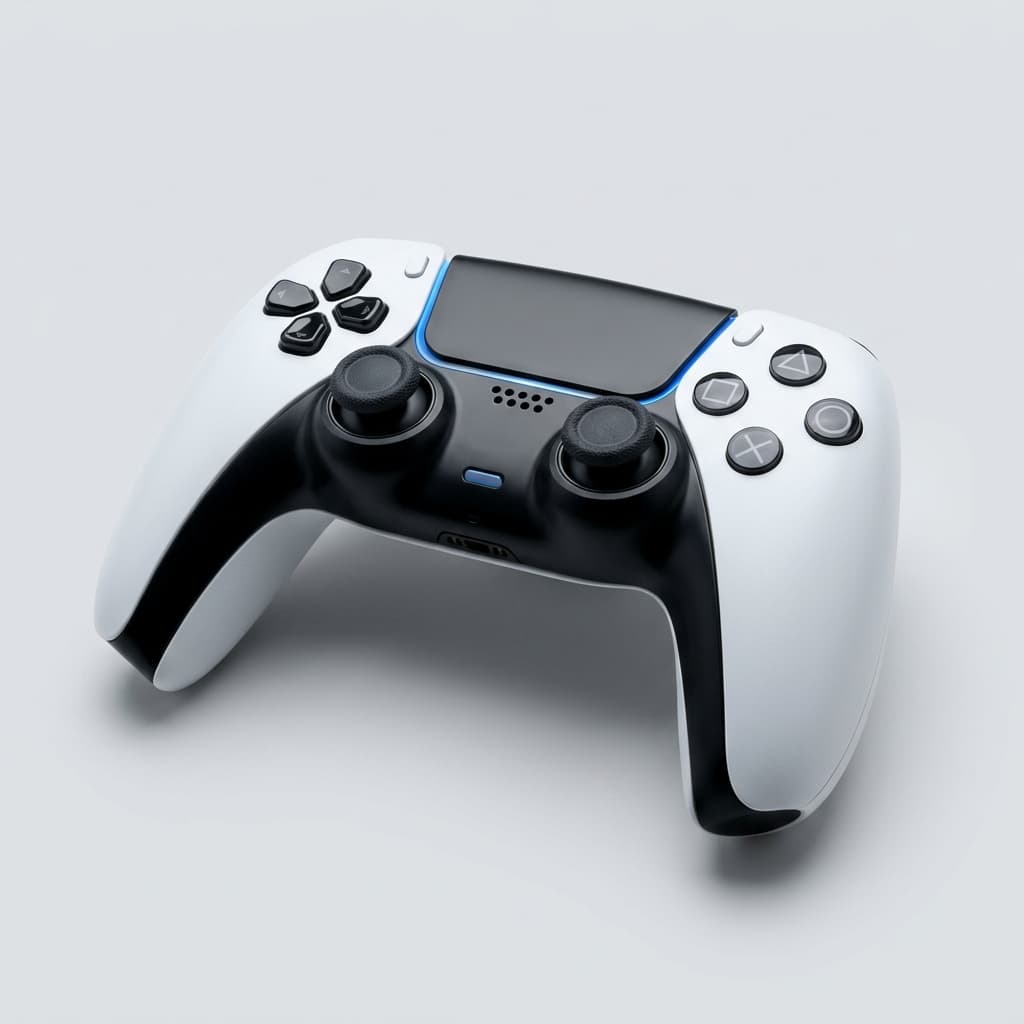
No. Sony's Grand Theft Auto VI White Limited Edition and Black Limited Edition DualSense controllers use standard internal hardware and voice-coil actuators. Aside from custom colourways and moulded palm-tree grip textures, they deliver the exact same haptics, adaptive triggers, and menu options as a standard controller.
Getting the best PS5 DualSense settings for GTA 6 comes down to pairing Rockstar's split Controller and Audio tabs with your console's hardware sliders. Dropping your stick deadzones to 1–3 immediately sharpens aiming and movement at 30 FPS, while toggling Adaptive Speed Limiter and PS5 Trigger Effect Intensity lets you shift effortlessly between relaxed Vice City cruising and responsive shootouts. Whether you are fine-tuning a launch gamepad or picking up a spare controller or classic PlayStation release through RetroBroker, a few minutes in these menus will make every drive across Leonida feel right in your hands.
Check current prices on controllers, 3D wireless headsets, and fast NVMe SSD storage on Amazon.
As an Amazon Associate we earn from qualifying purchases.
Grab the free Smuggler Gorse 425 shotgun in GTA 6 early in Chapter 1. Find the exact Permit Keys island coordinates, weapon stats, and nearby secret loot.
| 2–3 |
| 1–2 |
| Deadzone (Right Stick) (In-Game: Controller) | 2–3 | 2–3 | 1–2 |
| Touch Pad Button (In-Game: Controller) | Map | Map | Map |
| Light Bar Effect (In-Game: Controller) | On | Off | Off |
| Controller Speaker (In-Game: Audio) | On | On | On (or Off on headset) |
| Controller Cop Scanner (In-Game: Audio) | On | Off | Off |
| Trigger Effect Intensity (PS5 System Menu) | Strong | Medium or Weak | Off (or Weak) |
Inside the Controller tab under DualSense Wireless Controller Features, you can fine-tune how your DualSense wireless controller reacts to Leonida's roads, weather, and firefights:
GTA 6 adaptive triggers settings are split into three independent On/Off toggles inside DualSense Wireless Controller Features. Turning off pull resistance does not automatically disable trigger rumble or speed limiting, giving you granular control over L2 and R2:
Keep Adaptive Speed Limiter On when weaving through dense Vice City traffic, cruising casually, or checking your in-game phone behind the wheel. Switch it Off before street races or high-speed police escapes so the mid-travel stop never feels restrictive. Check your menu right away on first boot—most launch captures show Adaptive Speed Limiter enabled by default, though at least one outlet reported it starting Off.
If you play with a DualSense Edge wireless controller, you can customize stick sensitivity curves and swap profiles on the fly between driving and shooting setups. Keep in mind that launch testing is still inconclusive on how physical hardware trigger-stop locks on the DualSense Edge (or third-party pro controllers) interact with the mid-travel R2 threshold used by Adaptive Speed Limiter, so leave your right trigger stop on full travel if you use the limiter.