Engine Limits vs. Glitches: What Console Settings Can't Fix
Not every soft texture or flickering shadow means your SSD is failing. Rockstar locked every console version of Grand Theft Auto VI—across PlayStation 5, PlayStation 5 Pro, Xbox Series X, and Xbox Series S—to a 30 FPS target with no 40 FPS or 60 FPS performance toggle and no Depth of Field slider in the settings menu.
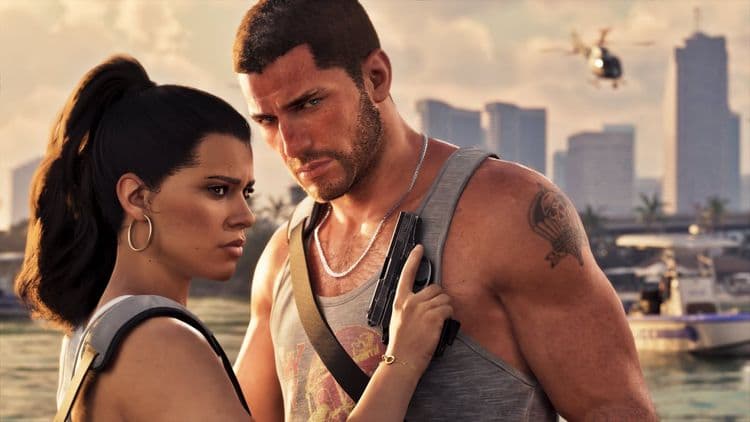
Base PS5, PS5 Pro, and Xbox Series X all render internally at 1440p (2560x1440), though how they reconstruct that image differs noticeably. PlayStation 5 Pro upscales to 4K using PSSR and adds exclusive ray-traced shadows, delivering cleaner distant detail. Base PS5 and Xbox Series X rely on spatial upscaling paired with Rockstar's in-house TAA, heavy depth-of-field blur partly designed to mask distant level-of-detail pop-in and dithering, and non-ray-traced shadows that visibly pop in and out of reflections. Severe geometry pop-in while driving at high speeds is primarily an Xbox Series S hardware trade-off, as that version renders internally at 720p upscaled via FSR 4.
While you cannot remove engine-level LOD behaviour or mandatory depth-of-field blur, two display tweaks help smooth out the presentation. Adjusting the in-game Motion Blur setting reduces perceived 30 FPS sample-and-hold judder on fast-response OLED TVs. In addition, Xbox Series X players with compatible displays can enable a 120Hz VRR container at the system level to smooth minor frame-pacing dips—an advantage PS5 cannot match here, because Sony's VRR floor does not engage at 30 FPS.
FAQ
Why does GTA 6 keep crashing during the Pipework mission?
The early story mission Pipework, which introduces Mandy, triggers a deterministic crash for many players when standing near the sink or using the plunger. Because clearing cache, reinstalling, and even factory resetting consoles have failed to fix it permanently, you should back up your saves and wait for an official Rockstar patch rather than wiping your system.
How do I stop headset audio crackling and cutouts in GTA 6?
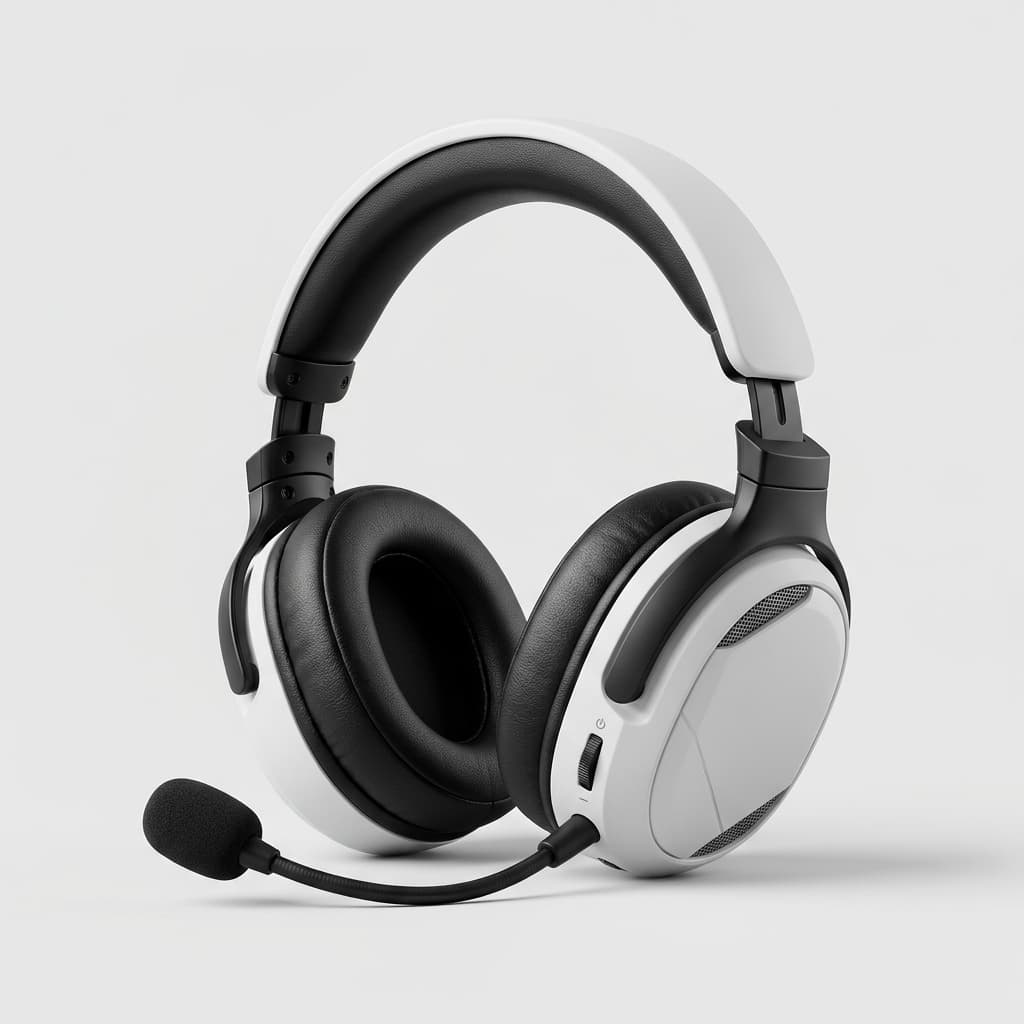
On PS5, turn off Enable 3D Audio for Headphones under Settings > Sound > 3D Audio (Headphones) and restart the game completely. On Xbox Series X, set both Headset format and HDMI audio to Stereo uncompressed under Settings > General > Volume & audio output, and always cold-boot the game instead of using Quick Resume.